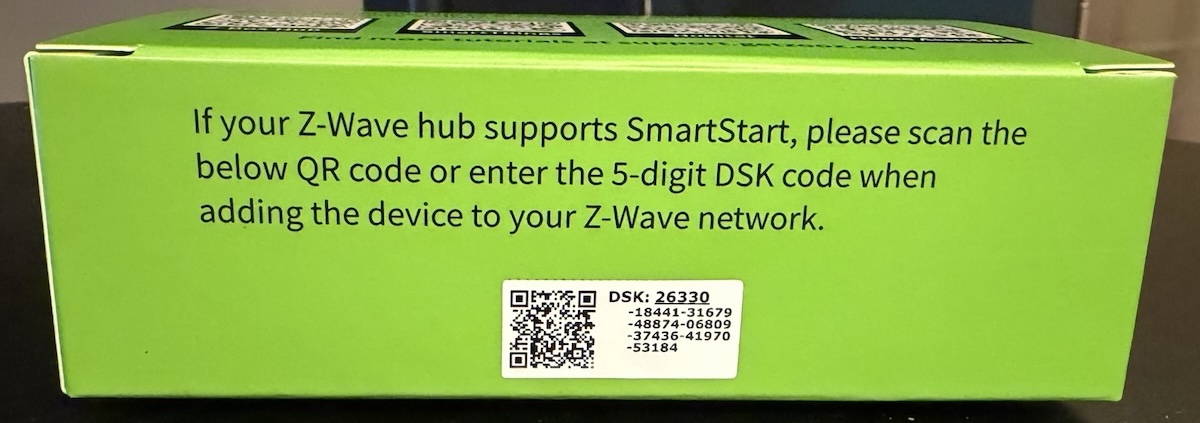
SmartStart is the QR code enrollment method for Z-Wave devices. Here we cover SmartStart enrollment on the Qolsys IQ Panel 4 and IQ Panel 5. It uses the device’s S2 security key (encoded in the QR code) to securely pair the device, and it’s simpler than traditional inclusion since each device joins automatically once powered on within range.
Important: SmartStart enrollment is required to enroll a Z-Wave device in Long Range (Z-Wave LR) mode. A device that supports Z-Wave LR will only join in Long Range mode if it is added via the SmartStart QR code (or its DSK). Standard “Add Device” inclusion will not enable Long Range.
Before You Start
- The device must support S2 security (Z-Wave Plus or higher). SmartStart-capable devices have a QR code on the packaging and/or on the device itself.
- Keep the packaging until enrollment is complete. The QR code and 40-digit DSK are often only on the box.
- If you can’t scan the QR code, you can manually enter the device’s 40-digit DSK (Device Specific Key), not just the 5-digit bold portion.
- Have your Installer (default 1111) or Dealer (default 2222) code ready.
Steps
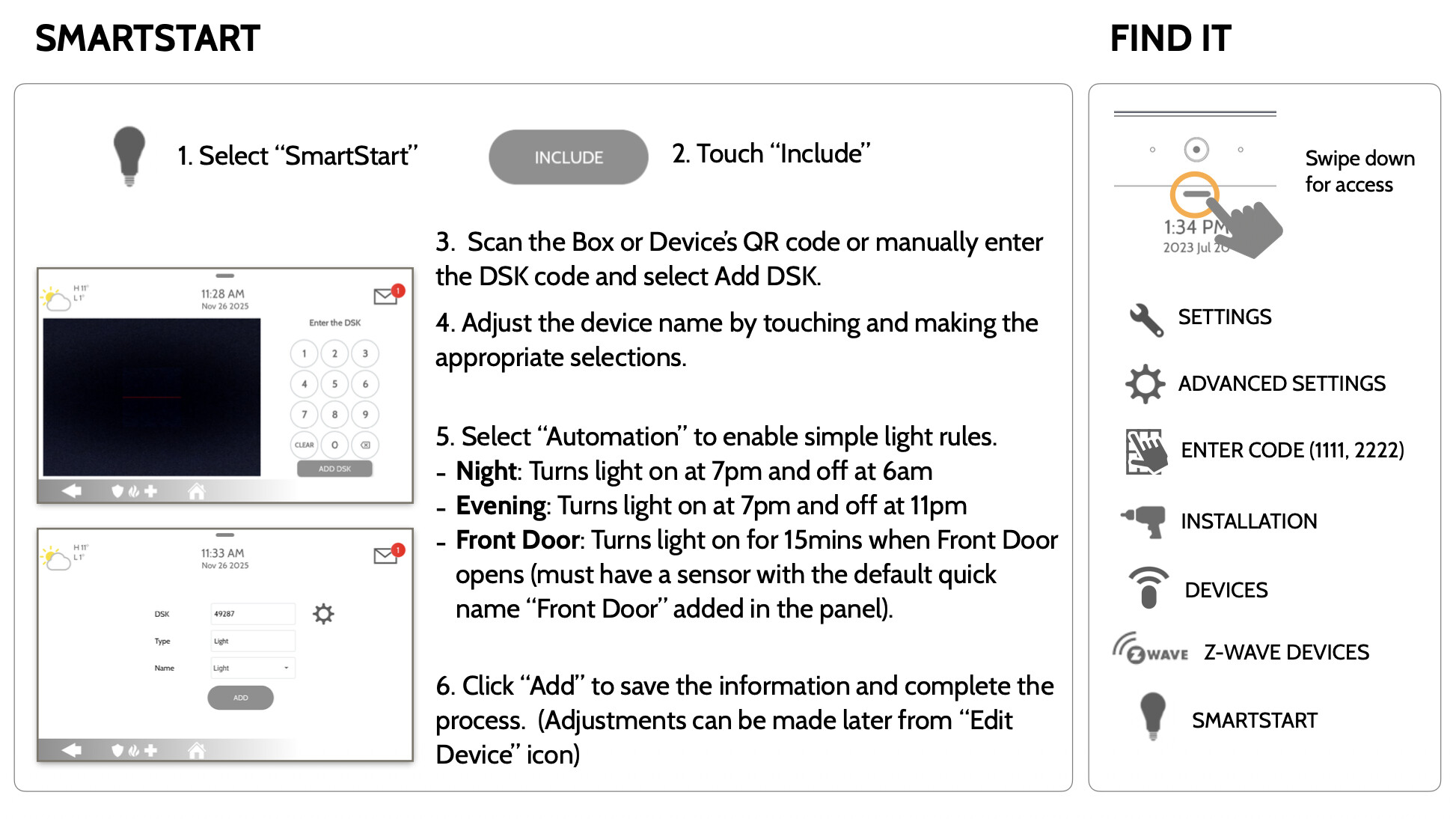
- Open Z-Wave settings. From the panel’s Home screen, swipe down from the top (tap the grey bar) and tap Settings.
- Tap Advanced Settings and enter your Installer (1111) or Dealer (2222) code.
- Navigate to Installation > Devices > Z-Wave Devices > SmartStart.
- Scan the QR code. The panel’s front-facing camera opens. Hold the device packaging (or the device) so the QR code sits inside the square in the center of the camera view. It doesn’t need to be perfectly aligned. If you have trouble scanning the QR code, try this method.
- No QR code? Manually enter the 40-digit DSK to achieve the same result.
- Configure the device. Once captured, the device type populates automatically and a default name is provided. Tap the dropdown to customize the name and adjust any device-specific settings.
- Tap ADD. The device is added to the Provisioning List.
- Power on the device. Install and/or power on the Z-Wave device. The panel will detect it and complete inclusion automatically, typically within about 10 minutes of the device being powered on within network range.
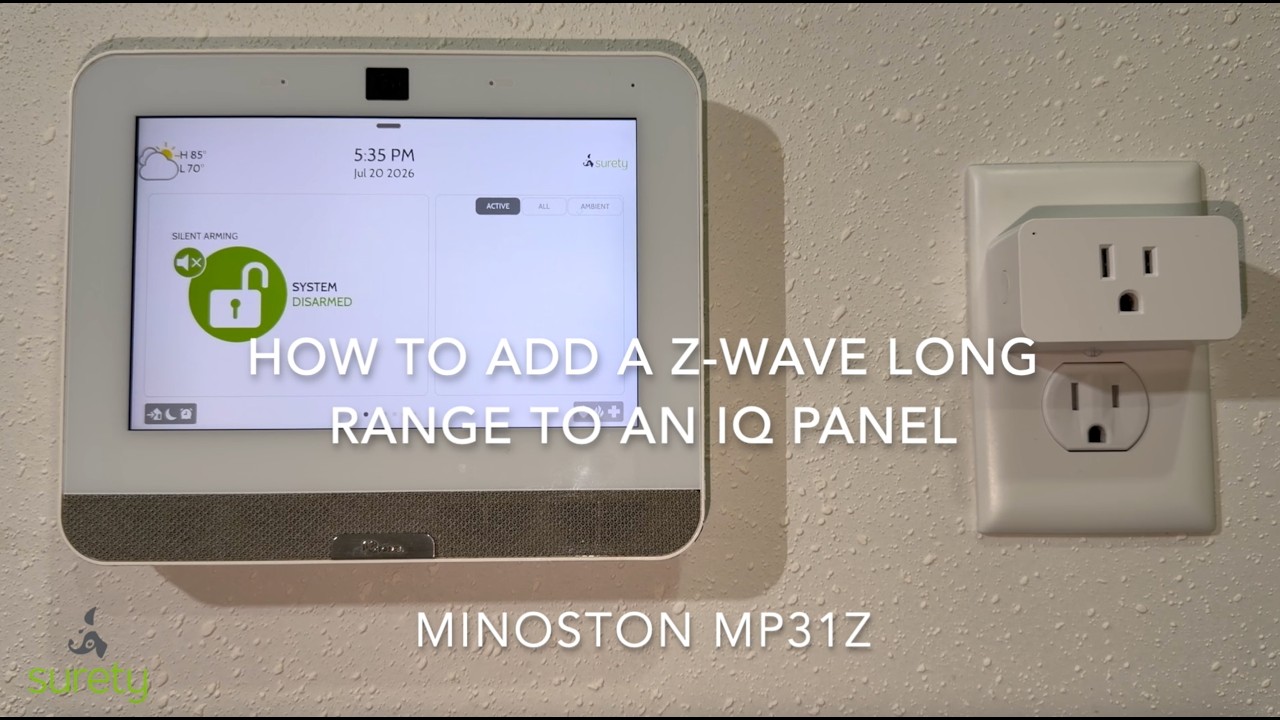
Sometimes people have difficulty scanning the QR code on IQ Panels. Here is a tip that helps:
Track Enrollment with the Provisioning List
You can view the status of all SmartStart devices at any time via Settings > Advanced Settings > (enter code) > Installation > Devices > Z-Wave Devices > Provisioning List.
Status progresses through:
- Not in Network: QR code/DSK entered, but the panel hasn’t heard from the device yet.
- Started: The panel is communicating with the device and adding it.
- Included: Successfully added and ready to use through the panel (and Alarm.com, if your account supports automation).
Tips
- Install devices closest to the panel first, then work outward, to help build a strong mesh network. (Note: Z-Wave LR devices communicate directly with the panel and don’t rely on the mesh.)
- Devices added via SmartStart sync to Alarm.com automatically within a few minutes once Included.
- The IQ Panel 5 (and IQ5 Hub) adds Z-Wave Long Range support out of the box; on the IQ Panel 4, Long Range support depends on firmware and the Z-Wave radio version.