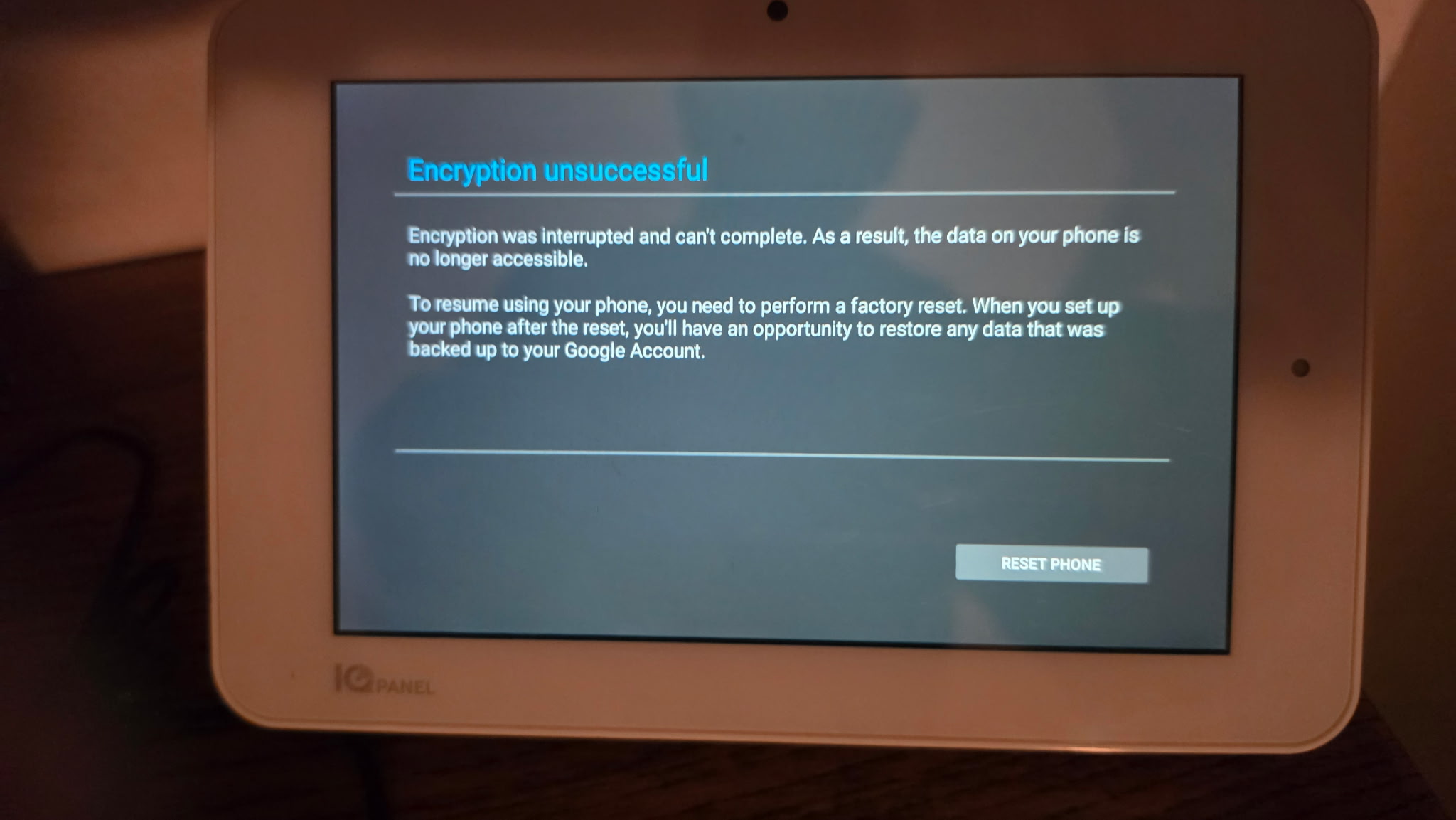
Qolsys indicates that if an extended power cycle, with AC and battery unplugged for 10+ minutes, does not resolve the issue, then the panel will need replacement.
As an alternative, with power applied, you can try holding the side button down for 30 seconds+ to reset but if the full power cycle did not resolve, this may not either.
For panel replacement, you would need a system that works with 319.5MHz sensors. The Qolsys IQ Panel 5 and IQ 5 Hub would work but you would need the IQ Card 319.5MHz SKU QC0001-840 installed.
Please let us know if you have any questions about this.
I’ve tried those options and has failed. I’m purchasing a replacement IQ5 panel from your store with the 319.5 card installed. Once it arrives, how do I remotely transfer everything from the old to the new? Are you able to push a restore?
Z-wave is still not supported? How do I force remove old zwave so I can reinstall to the new since I can’t do clean uninstall from old panel?
Also, how do I remove the forced $24/mo charge for the surety complete plan at checkout (since I already have a plan I’m using).
A backup restore can be processed so long as the IQ Panel 2 is on FW 2.6.1+, yours is on 2.8.1 and a backup was last run on 10/4/2026.
This process can pass User Codes, Sensor Programming and Panel Settings only. Z-Wave devices must be Cleared, then paired manually.
More information on the process can be found in the guide below.
Also, how do I remove the forced $24/mo charge for the surety complete plan at checkout (since I already have a plan I’m using)
You cannot at this time. Leave a note in the order notes field that you are swapping panels and we can delete the unused sub and apply the complimentary month to the existing account.
.
A backup/restore can be run to apply RF sensor programming, User Codes, and panel programming to the new panel. This process can be performed during normal business hours.
The process for the backup restore is as follows:
Run a backup (There was already an automatic one)
Once the new panel is received and you are ready to start the process:
Power down the old panel power supply first, then internal battery
Private Messsage us with the new panel’s 15-digit IMEI number
We will send commands to begin the restoral process and confirm this has been sent.
The restoral can take 20-30 mintues. During this time, do not add any devices to the new panel or send any arming disarming commands or make any programming changes to the new panel.
You will know the process is nearing completion once the last of the sensors populates at the panel. Wait an additional 5 minutes or so for User codes to populate, if applicable.
The panel is on. I’m at the home screen now. Cellualr and Wifi test has passed. No sensors are showing. Does the restore command need to be sent again? Thanks.
It looks like the panel is not reading the 319.5 Mhz legacy card so it failed to add the legacy sensors. Please make sure it has been installed in the correct spot
Unfortunately, when transferring to the new system, the backup is lost. The only way to get another backup would be to switch back to the IQ Panel 2 if it is still working correctly. If not, then the sensors would need to be learned in manually. You would need to:
Set the panel in learn mode:
Swipe down on the main screen
Select settings
Select Advanced Settings
Enter Installer(1111) or Dealer(2222) code
Select Installation
Select Devices
Select Security Devices
Select Auto Learn Device
Open or Close your first door/window. If the panel doesnt see it, tamper the sensor by removing the cover and then closing the sensor.
Finish programming on the panel
Do this for all sensors. Careful with motions as they may trigger if walking in front of them.
Press the home button on the bottom to exit programming.
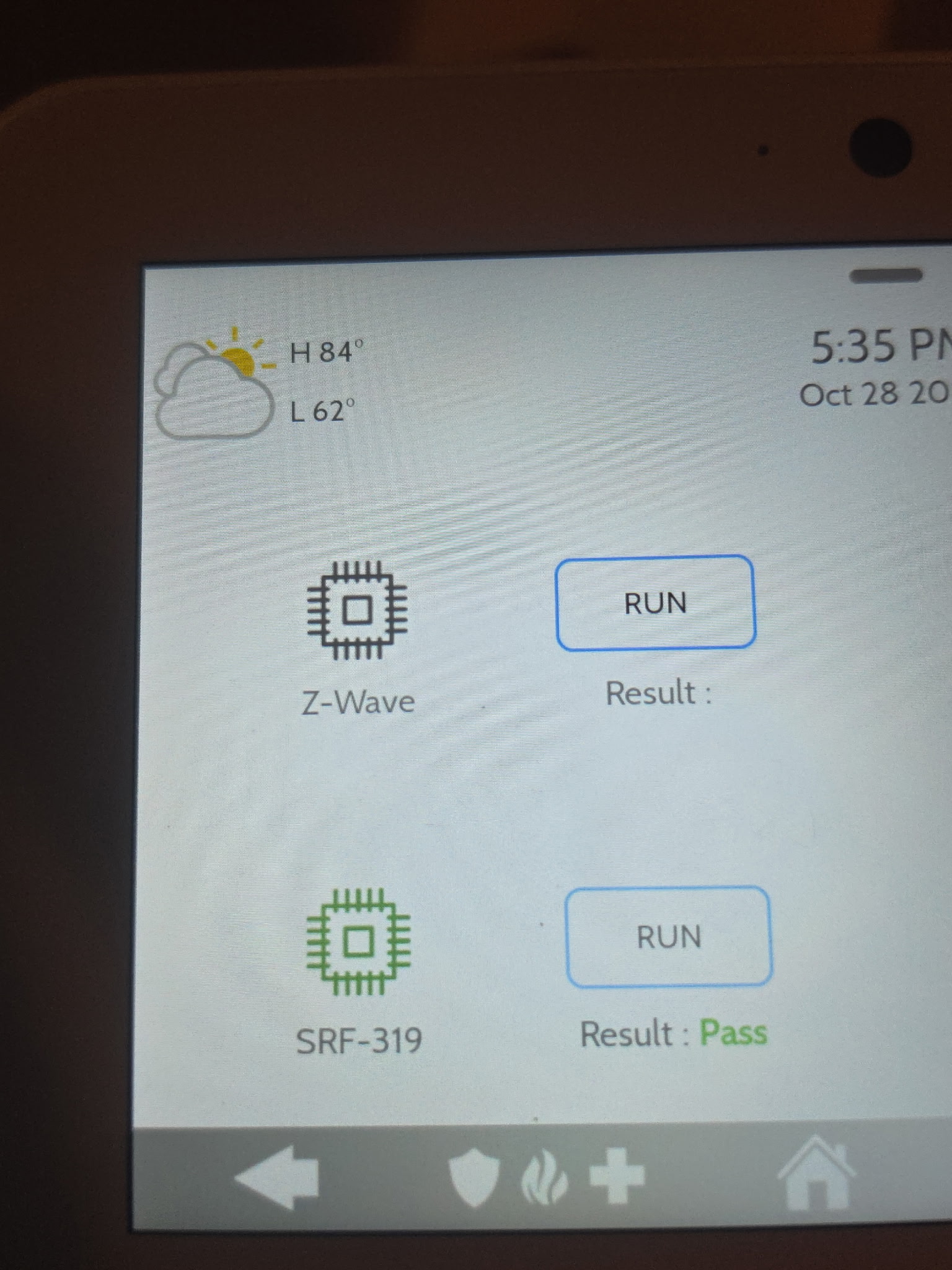
fyi - back when that pic was posted of the card in the IQ 5, I noticed it was in the wrong slot. (Pic is now deleted, but it seemed to be in the other slot.) You both may have already discussed that offline, but I wonder if it’s in the wrong slot hence the restore did not work. (even though the card appears in the daughter card test screen.)?
If the card is in the other slot, the panel can still show it in the daughter card test, but it won’t fully read it. That’s why the restore couldn’t add the legacy sensors.