The Qolsys IQ Panel 5 and IQ 5 Hub work with PowerG natively but require a separate radio (IQ Card) to work with legacy 319.5MHz, 345MHz, or 433MHz sensors.
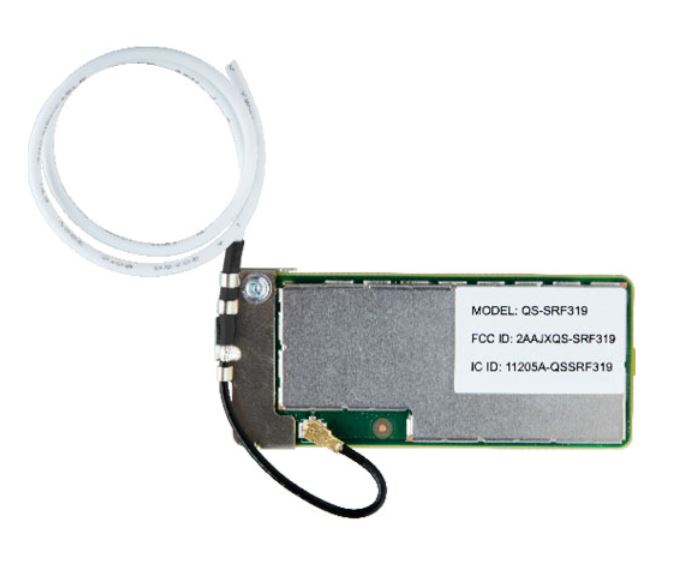
Product SKU
- IQ Card-319 QC0001-840
- IQ Card-345 QC0005-840
- IQ Card-433 QC0004-840
IQ Card Installation
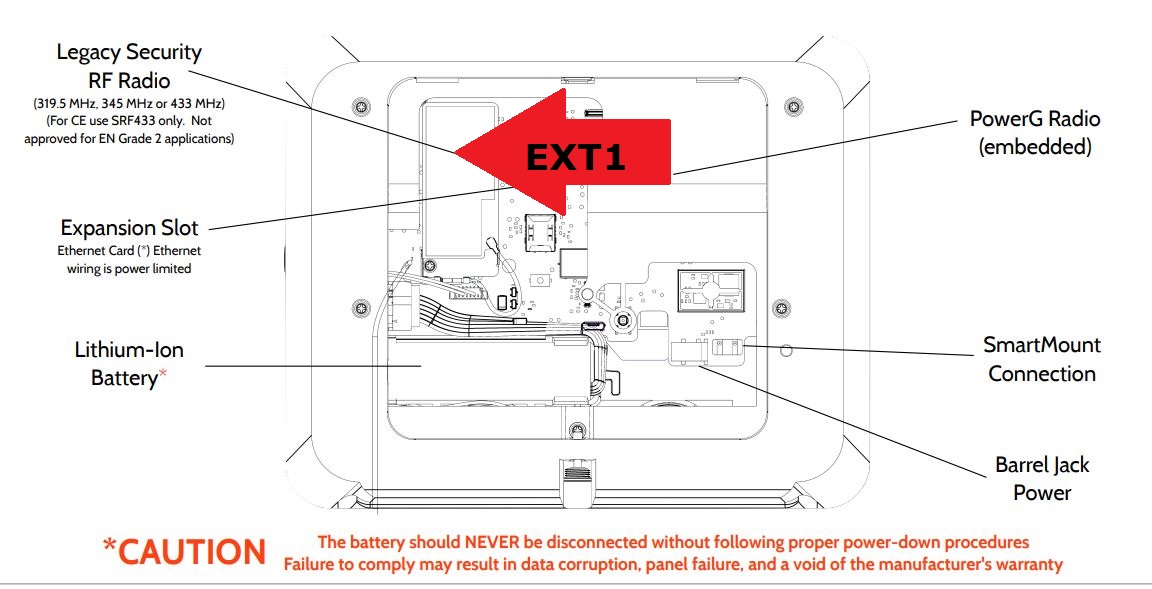
The IQ Card installs in EXT1 of your IQ Panel 5 or IQ 5 Hub to allow for legacy sensor compatibility.
Before You Begin
Power down the panel before installing the IQ Card. Failure to do so can cause damage to the system.
- Swipe down from the top of the screen and tap Settings, then Advanced Settings.
- Enter your installer/dealer code and tap POWER DOWN.
- Once the panel has fully powered down, unplug the power supply.
It is NOT required to disconnect the battery.
Installing the Card
- From the bottom of the panel, locate the retaining screw and loosen it completely.
- Pull the backplate away from the panel to remove it.
- Locate EXT1, which is designated as the slot for SRF daughter cards.
- Match the pins on the bottom of the IQ Card to the terminal on the IQ 5 Series.
- Push the IQ Card firmly into place.
- Install and tighten the provided locking screw to secure the IQ Card.
Ensure the antenna remains connected and does not interfere with the battery.
- Replace the back cover, top tabs first.
- Route the white SRF antenna out of the hole in the backplate.
- Press down on the bottom of the cover and tighten the retaining screw.
- Plug the power supply back in and press and hold the power button for 3 seconds to power on.
Testing the Card
- Swipe down and tap Settings, then Advanced Settings.
- Enter your code and tap System Tests.
- Tap Daughter Cards Test.
- Run the SRF test. Allow up to 2 minutes for the panel to test the radio in the new IQ Card.
If the test fails, reboot the panel and try again.
Finishing Up
The IQ 5 Series will automatically recognize the newly-installed IQ Card and it is now ready to use.