Hi - I’m having the strangest issue with my Qolsys IQ Panel 4. This all started when I was trying to connect it to Home Assistant using the Control4 integration.
I got everything set up, but when the panel rebooted after enabling Control4, I noticed that even though it thinks it’s connected to Wifi, it gives a “Could not connect to Wifi” popup as soon as I go to settings, and it does not respond to ping or SSH on my local network.
When I run a system test or go to the Wifi configuration, everything looks fine - it says connected, Internet available, etc. - but the Control4 integration doesn’t work and that popup always shows up as soon as I click settings.
Things I’ve tried; powering down the panel using the installer menu (it’s wall mounted, so disconnecting the battery isn’t something I’d prefer to do), upgrading to the latest firmware, enabling and disabling the Control4 integration, regenerating the key, turning on and off PMF, isolating it to its own SSID and putting it back on the main one - none of these worked!
Can’t figure out if something’s actually wrong with it or what. I did manage very briefly to get it to show up in HA, but it went unresponsive within 20 minutes and went back to this state. Now I can’t even get it to show up in HA.
Verify that your panel is running version 4.6.1, which is the latest version
Verify that your wireless network is not using WPA3. These panels tend to not like it. I’ve had issues of intermittent connectivity when on a WPA2/WPA3 network. Had to make a dedicated ssid that was WPA2 only for stability.
Even on a dedicated SSID that is WPA2 only, I see the following:
When I swipe right, it says Wi-Fi - connected, No Internet. When I click details, it says Back-end connected, no interent. When I click details, it flips to "Connected”, but then going to settings it again shows no wifi available. The Wifi test under installer options also fails, though when I do a system health check, Wifi shows as green/passing. As soon as I click settings, it says “No Wi-Fi Access. PLease check your Wi-Fi or Router connection.” (And when I swipe right again, it shows Wi-Fi as yellow, connected no internet)
Hi. Any luck with this? If not a few other thoughts;
Before digging into my questions below, if you can, I’d do a full power cycle of the panel for good measure.
Was this working before, on the same ssid with the same password? Any network changes? What hardware are you using for your wireless (just curious)
If you go into settings, installation, devices, wifi devices, wifi - do you see a list of available wifi networks that are broadcasting? Is your target network listed?
If you connect a test laptop to that same ssid with the same password, can you browse the internet?
Just as a test, you could try turning off band steering and set it to 2.4 only.
When the panel goes into this odd state (connected but no internet), does the speed, connection type and IP address of the panel make sense, or is it reverting to an auto configuration IP address, etc? (169.254.x.x) (under settings, advanced settings, about, wifi Information)
Any chance of a firewall rule blocking outbound access somewhere?
(This is all assuming the ‘briefly connected and then connection stops’ scenario is still occurring. ). Hope this may help.
Thank you! My WiFi is otherwise acting normally - I’ve tried both 2.4ghz only as well as 5ghz/2.4ghz. I use a ubiquiti network with multiple APs (wired, not mesh).
When on a dedicated ssid set to 2.4ghz only, it was a little odd in terms of sometimes not showing this ssid in the list of available networks, but once set to dual band, it shows up there.
I don’t have any firewall setup or isolation for this device. I’m not home right this moment, but will check if it’s advertising this setup IP or a proper one.
On the ubiquiti side, it shows this client connected as normal, even though it’s not responding to ping on my internal IP
I’ve done a power down from the panel too, but not disconnected the battery, given that it’s wall mounted and I really don’t want to drop the cord in my drywall lol - is a power down and power back up sufficient?
In my experience, a full power cycle and discharge of the system would be the best clean slate to start with, unfortunately.
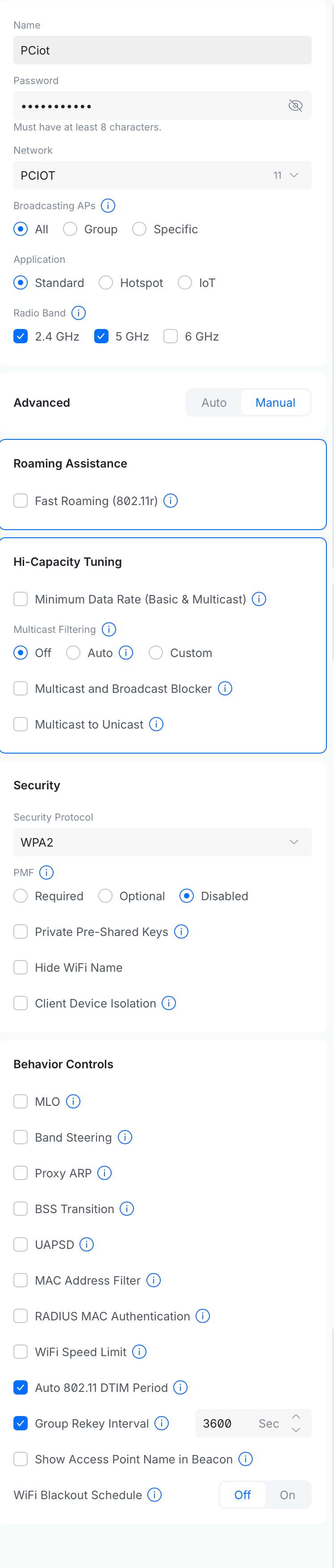
Me too Here’s my IOT network configuration - just to compare notes… When troubleshooting I sometimes turn off 5Ghz here just as a test; but usually I leave it on as the coverage is good. Important things to shut off include band steering, BSS transition, PMF disable, WPA2 (some we already discussed).
[I have to say I had a similar bizarre issue, but with an IQ Remote PG (rather than the IQ panel itself)… which somehow miraculously resolved itself after 2 days. I never made any changes and never could figure it out. (it just refused to join a particular wifi network for a few days?).
Maybe the Surety team knows of some other issue reports?]
Unfortunately none of those steps worked - I set my configuration exactly as you did - still nothing. Forwarded those ports and same issue. The connection will intermittently show on the panel as connected/healthy or connected/no internet, but it still doesn’t respond to ping on my internal network. Otherwise the system seems to be working fine? But I can’t get the Control4 integration to work and still get this ‘could not connect to wifi’ message whenever I open settings.
No, I see the same behavior now when I turn off WiFi - panel thinks it connects to wifi but has no internet, sporadically thinking it has WiFi internet before dropping back to yellow - seems to never respond to ping.
Lets make sure it isn’t the panel itself with the issue. Can you try turning on your phones hotspot and connecting the panel to the hotspot. Then, test the Wi-Fi connection. If it is successful, then we will need to look further into your network settings
Unfortunately that also didn’t seem to really work. I was able to connect to my phone’s hotspot SSID, but it dropped shortly after - maybe because it wasn’t responding to ping? Note that this is different behavior from what I see on my actual wifi, where the router thinks it’s staying connected even though it doesn’t respond to ping.
It sounds like it is an issue with the panel itself.
The panel is set automatically to band steering. You can try just using 2.4 or 5. This option can be found by swiping down from the main settings > Advanced Settings > Installer Code > Wi-Fi > Advanced Wi-Fi Settings > Select Band Steering and the frequency desired. You can also enable PMF if enabled on your router.
If this still fails, then a factory default of the panel will be the next step. We can perform a backup of your wireless sensors, you will perform the factory default, and then we can restore the backup. This is only for alarm sensors. Any IQ Remotes, Z-Wave devices, and PowerG Takeover Modules would need to be learned back in manually.
Thanks! I’ve just tried all permutations of band steering (dual/2.4/5ghz) as well as PMF on and off (and changing between my SSID with PMF optional and my SSID with PMF off) and it’s still the same state. Shows as connected to Wifi but seems unable to connect to internet via Wifi and doesn’t respond to ping etc.
Can we proceed with the reset/restore? I can re-add my remote and I don’t really use it for Z-wave devices nor do I have any PowerG takeover modules (I do have PowerG sensors, but I assume those will survive the restore process?)
All PowerG sensors will need to be tampered after the restoral.
The last back up was performed on Monday, February 16 2026. Do you need to perform a new back up?
To perform the factory default, you will need the Dealer code.
Swipe down from the mains screen > Settings > Advanced Settings > Enter Dealer Code (default is 2222) > Installation > Dealer Settings, then select Master Reset
Yea I think a new backup would be best, since we’ve installed a new sensor and changed some settings since then. I assume things like users/codes/cameras/etc. would also be restored from backup?
I have performed a new back up and it was successfully created.
The backup includes programming, User Codes, and panel programming.
Alarm.com cameras are not affected. Cameras run separate from the security panel as they connect to your Wi-Fi and communicate to alarm.com without the need of the panel.
Lutron cloud integration with alarm.com will not be affected but you may run into the issue of Lutron switches not appearing on the panel. The only way to fix this would be to remove your Lutron account from your account and then add it back in. You will need to recreate any rules that include light switches if you have any if this is done.
 Here’s my IOT network configuration - just to compare notes… When troubleshooting I sometimes turn off 5Ghz here just as a test; but usually I leave it on as the coverage is good. Important things to shut off include band steering, BSS transition, PMF disable, WPA2 (some we already discussed).