Pre-installation checklist
- ADC-VDB775 with included accessories
- Wired doorbell transformer 16-24 VAC, 10-40 VA or power supply (minimum 15 VDC 8 W); specifications are often written directly on the power source
- Wired compatible mechanical chime or digital chime
- Wi-Fi (2.4 or 5 GHz) connection to broadband Internet (Cable, DSL, or Fiber Optic)
- A computer, tablet, or smartphone with Wi-Fi is required
There are three options for connecting the ADC-VDB775 to the Wi-Fi network:
- Bluetooth Enrollment (BLE) mode
- Access Point (AP) mode
- Wi-Fi Protected Setup (WPS) mode
In the box
- Alarm.com Premium Video Doorbell Camera (ADC-VDB775)
- ADC-VDB775 wallplate
- Mechanical Chime Dongle (ADC-VDBA-MCD)
- Wall anchors (x2) & ST3.5 x 22mm screws (x2)
- Installation card with scannable QR code
Physical installation:
- Turn off power to the doorbell circuit (transformer). The recommended transformer rating is 16-24 VAC, 10-40 VA.
- Remove any existing power module from the in-home chime belonging to the video doorbell that is being replaced.
- Verify that the chime wire terminals are connected to one wire run from the transformer and one wire run from the doorbell.
- Select the in-home wired chime type below for installation steps:
Mechanical Chime
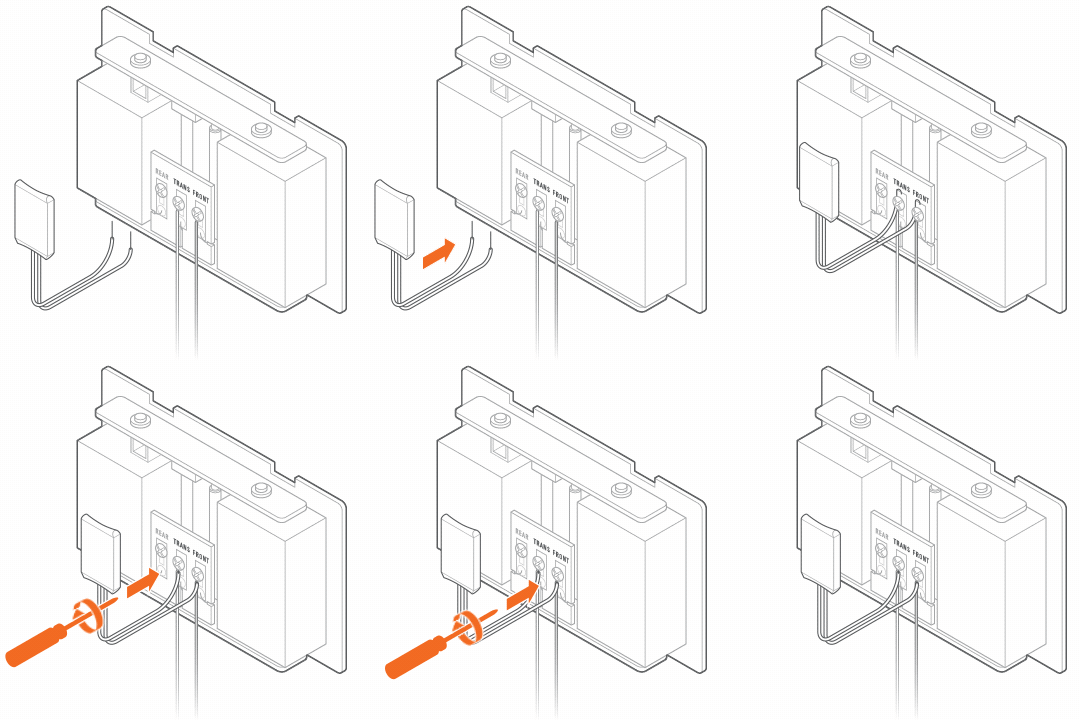
- Remove the existing doorbell from the wall and disconnect the wires. Secure the wires so that they can be connected in a later step (you can tape them to the wall so they don’t fall back into the wall).
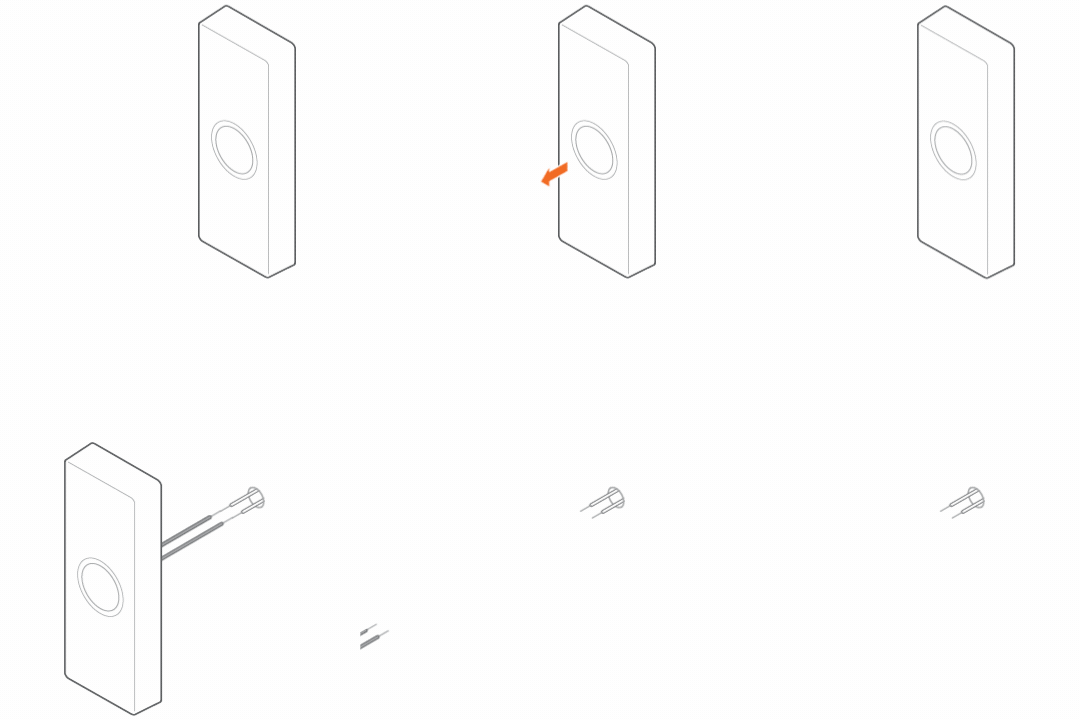
-
Verify the Video Doorbell installation height is less than 2 meters (6’ 7”) from floor level and in a vertical orientation.
-
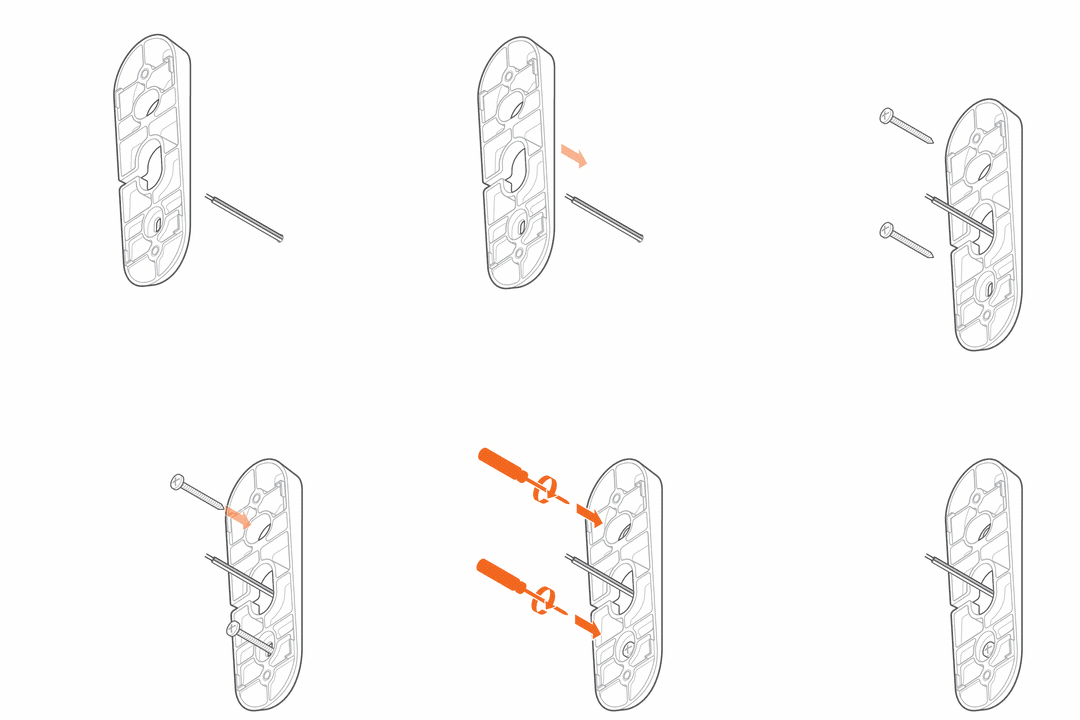
If using an optional wedge, thread the wires at the doorbell through the center of the wedge, making sure that the flat side faces the wall. Then mount the wedge to the surface using the provided screws/anchors.
- Thread doorbell wires through wallplate, making sure to thread wires underneath plastic bridges of wallplate leading to screw terminals, and secure to wallplate screw terminals.
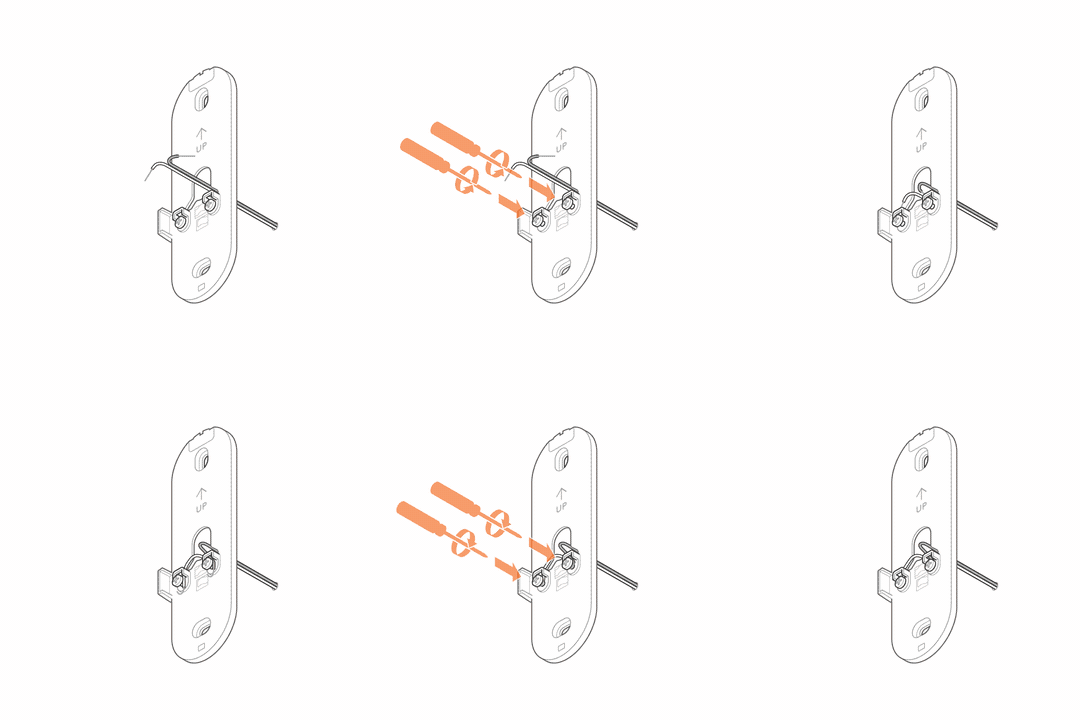
Minimize the length of excess wire leads protruding from the area surrounding the screw terminals. Excess wire can interfere with the assembly to the ADC-VDB775 and may result in the device not powering on.
- Determine whether to secure the wallplate to the optional wedge or mount it directly to the surface.
- If using an optional wedge, secure the wallplate to the mounted wedge using the two machine screws provided with the Wedge Mount Kit.
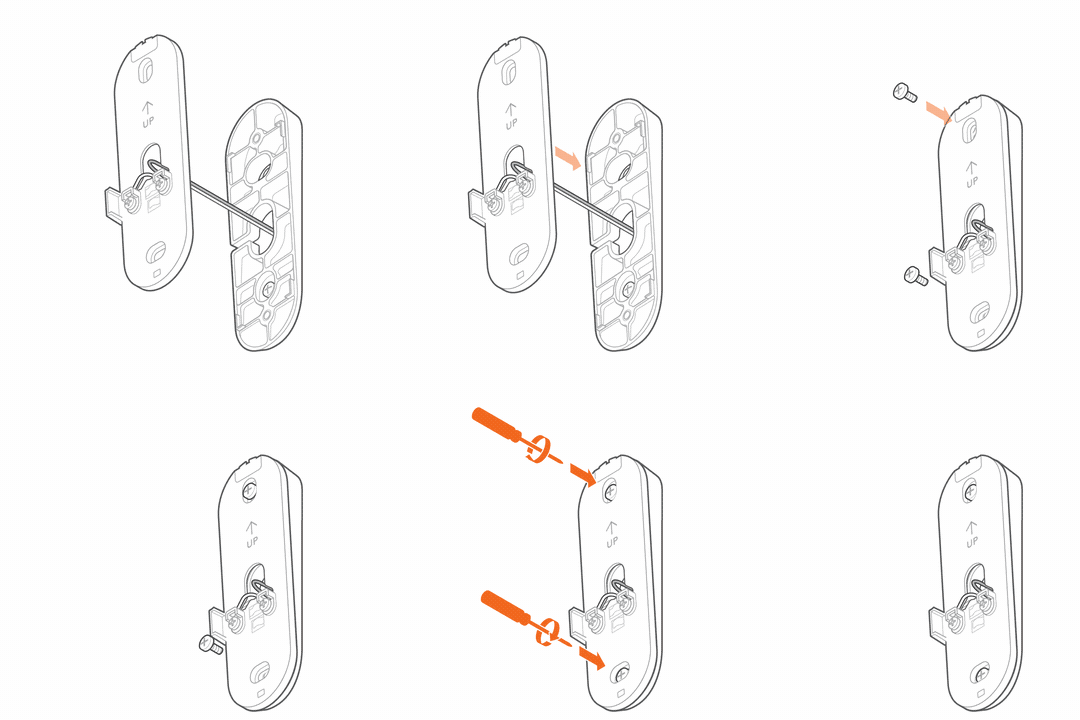
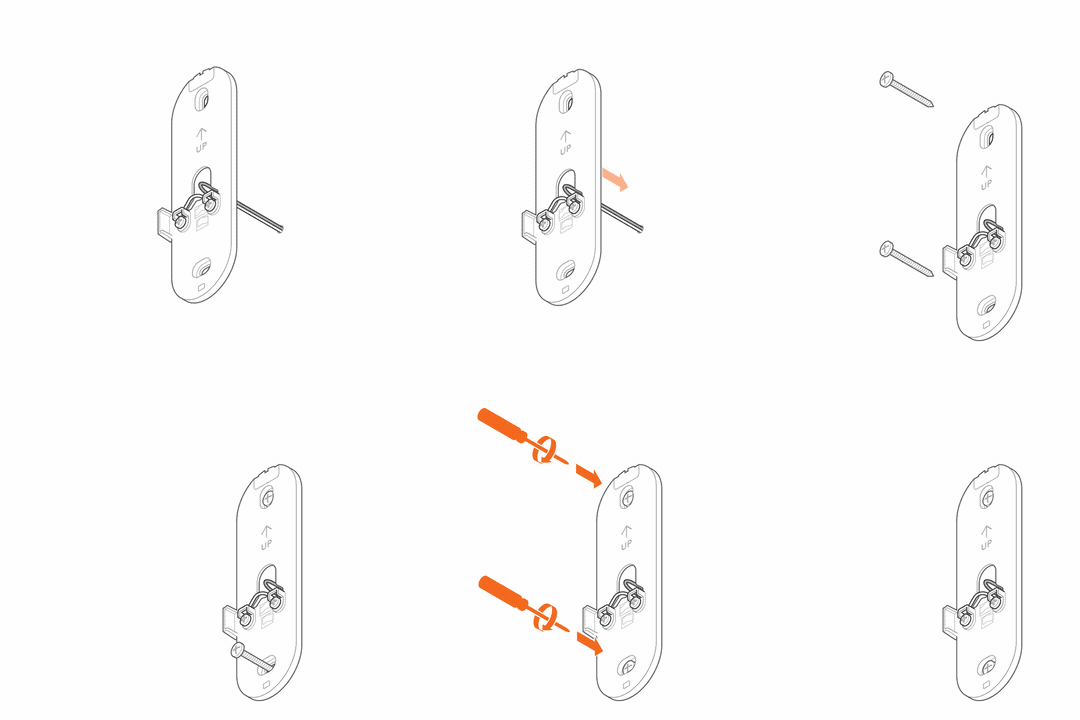
- If not using an optional wedge, mount the wallplate to the surface with the provided screws/anchors.
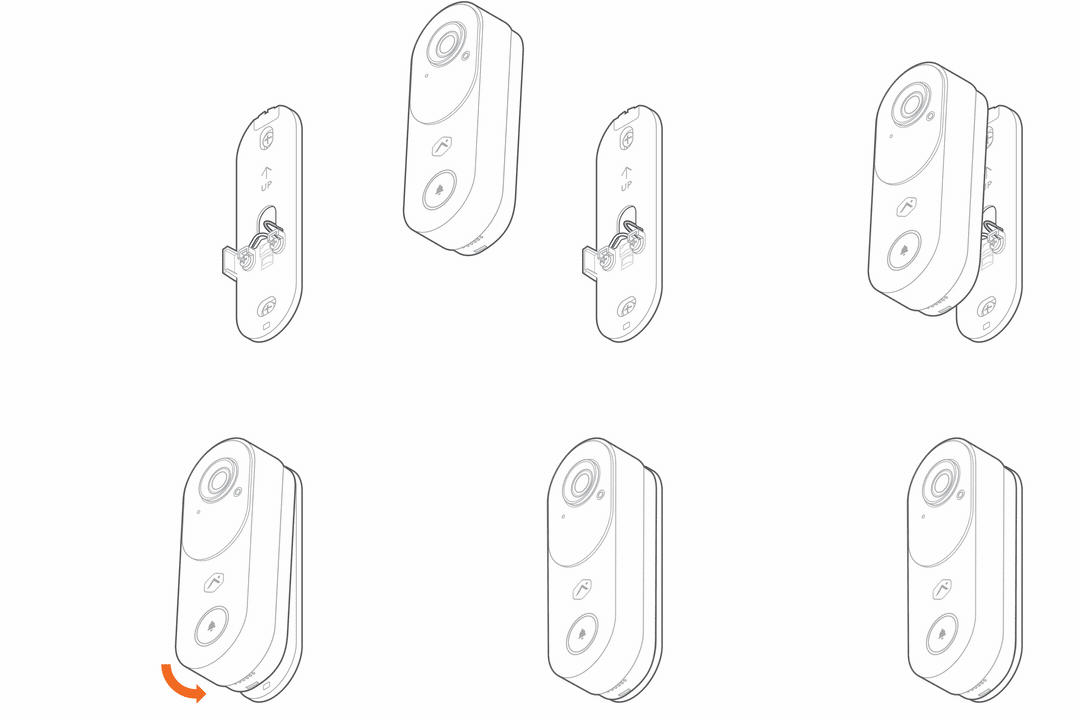
- Connect ADC-VDB775 device to wallplate by first securing/latching the top edge, then pushing the device into the wallplate until it clicks.
- Restore power to the doorbell circuit (transformer).
Digital Chime
Connect the ADC-VDB775 Power Module to the chime by connecting one wire to each of the terminals (leaving the existing wires in place).
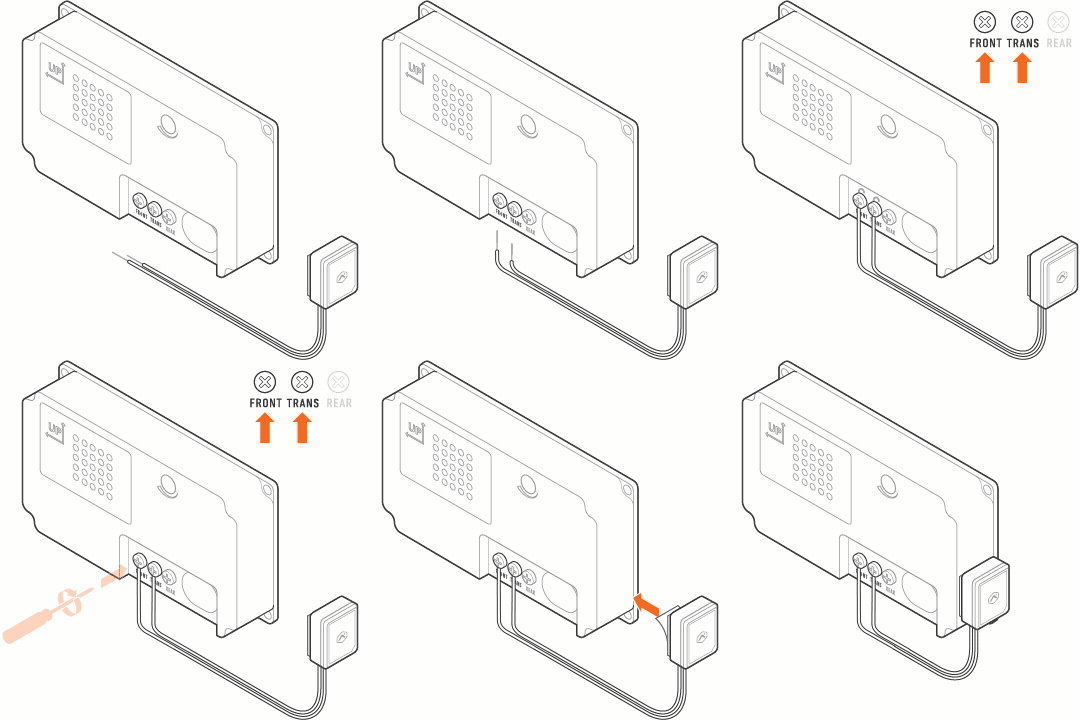
- Connect the ADC-VDB775 Power Module to the chime by connecting one wire to each of the terminals (leaving the existing wires in place).
-
Verify the Video Doorbell installation height is less than 2 meters (6’ 7”) from floor level and in a vertical orientation.
-
If using an optional wedge, thread the wires at the doorbell through the center of the wedge, making sure that the flat side faces the wall. Then mount the wedge to the surface using the provided screws/anchors.
- Thread doorbell wires through wallplate, making sure to thread wires underneath plastic bridges of wallplate leading to screw terminals, and secure to wallplate screw terminals.
Minimize the length of excess wire leads protruding from the area surrounding the screw terminals. Excess wire can interfere with the assembly to the ADC-VDB775 and may result in the device not powering on.
- Determine whether to secure the wallplate to the optional wedge or mount it directly to the surface.
- If using an optional wedge, secure the wallplate to the mounted wedge using the two machine screws provided with the Wedge Mount Kit
- If not using an optional wedge, mount the wallplate to the surface with the provided screws/anchors.
- Connect ADC-VDB775 device to wallplate by first securing/latching the top edge, then pushing the device into the wallplate until it clicks.
- Restore power to the doorbell circuit (transformer).
No Chime
- Connect the ADC-VDB775 Power Module to the chime by connecting one wire to each of the terminals (leaving the existing wires in place).
-
Verify the Video Doorbell installation height is less than 2 meters (6’ 7”) from floor level and in a vertical orientation.
-
If using an optional wedge, thread the wires at the doorbell through the center of the wedge, making sure that the flat side faces the wall. Then mount the wedge to the surface using the provided screws/anchors.
- Thread doorbell wires through wallplate, making sure to thread wires underneath plastic bridges of wallplate leading to screw terminals, and secure to wallplate screw terminals.
Minimize the length of excess wire leads protruding from the area surrounding the screw terminals. Excess wire can interfere with the assembly to the ADC-VDB775 and may result in the device not powering on.
- Determine whether to secure the wallplate to the optional wedge or mount it directly to the surface.
- If using an optional wedge, secure the wallplate to the mounted wedge using the two machine screws provided with the Wedge Mount Kit
- If not using an optional wedge, mount the wallplate to the surface with the provided screws/anchors.
- Connect ADC-VDB775 device to wallplate by first securing/latching the top edge, then pushing the device into the wallplate until it clicks.
- Restore power to the doorbell circuit (transformer).
Connect the ADC-VDB775 to the Wi-Fi network
The ADC-VDB775 can be connected to the Wi-Fi network using Bluetooth Enrollment (BLE) mode, Access Point (AP) mode, or Wi-Fi Protected Setup (WPS).
Note: An installation tutorial can also be found on the enrollment page of the Alarm.com mobile app, or website to walk through these steps.
BLE mode (recommended)
This method will also enroll the device to the Alarm.com account as part of the process.
- Connect the camera to power. Verify the device powers on and the LED begins to blink white.
- If it does not blink white after two minutes, press and hold the doorbell button and release when the LED begins to blink white (about 30 seconds).
-
On a Bluetooth-enabled mobile device, log in to the Alarm.com app and complete the following step to add the video device to the account.
-
Log in to the Alarm.com app.
-
Tap More.
-
Tap Add Device.
-
Tap Video.
-
Scroll to find the device or use the Find Device search bar to enter the model number, and then tap to select the device to add.
-
Enter a Device Name, then tap Next.
-
Power on the device and verify the LED light is flashing white, then tap Next.
- If it is not flashing white, press and hold the button until the status LED starts blinking white. This may take several seconds.
- Tap Troubleshoot to learn more about how to get the device to that state.
- If Bluetooth is not enabled on your mobile device, approve the Bluetooth permission request when prompted, and then tap Next.
- Bring your mobile device close to the device being enrolled, then tap Scan.
- Allow time for your mobile device to scan for devices in the area.
- Select the device to set up. Verify the selected device’s MAC address matches the MAC address on the device being enrolled, then tap Connect.
- Keep your phone near the device while it connects.
- Once your phone is connected to the device, tap to select the Wi-Fi network. Either:
- Select a known network in My Wi-Fi Networks, or
- Select a new network in Other Networks, enter the password for the Wi-Fi network, and then tap Connect.
- Allow a few minutes for the device to connect to the network.
- Once the device connects to the Wi-Fi network, the device continues to complete the install on the customer’s account. Once the installation is complete, verify the video device works properly.
AP Mode
WPS Mode
Enroll the VDB775 to the account
The ADC-VDB775 can be enrolled to a customer account using the Alarm.com website, or mobile app.
Alarm.com Website
Once the installation is complete, test the device to verify it is working as expected.
Alarm.com Mobile App
Once the installation is complete, test the device to verify it is working as expected.
LED Status Guide
| LED pattern | Description |
|---|---|
| Off | Power off |
| Solid green | Connected to Alarm.com |
| Blinking green | Local network connection |
| Blinking red | Power on, camera booting |
| Solid red | No local or internet connection |
| Blinking white | Wi-Fi Access Point mode (press and hold the reset button for 30-35 seconds) |
| Blinking blue | WPS mode (press and hold button for 35-40 seconds) |
| Blinking yellow | Power cycling (press and hold button for 40-45 seconds) |
| Blinking red and green | Camera resetting to factory default (press and hold button for 45-50 seconds) |
| Blinking blue and green | Firmware updating |
Troubleshooting
- If you have issues connecting the camera to the account, power cycle the camera and try again.
- If issues persist, reset the camera to factory defaults. Press and hold the Doorbell Button until the LED is flashing green and red (about 45 seconds), then release the button. The camera will reboot to factory default.
If the camera was previously installed on a different Alarm.com account, it will need to be deleted before it can be installed again.
Caution: Prolonged exposure to sunlight in extreme conditions may impact the camera’s performance.