Pre-requisites
In order to track vehicles with Alarm.com Connected Fleet, you must first add a Connected Fleet add-on for each vehicle to your Surety Business subscription. There must be an available Connected Fleet add-on on you account (on that doesn’t already have a vehicle connected to it.
You need a CC100 Car Connector (aka Fleet Connector) to plug into the vehicle. If you don’t have a fleet connector, they can be ordered here.
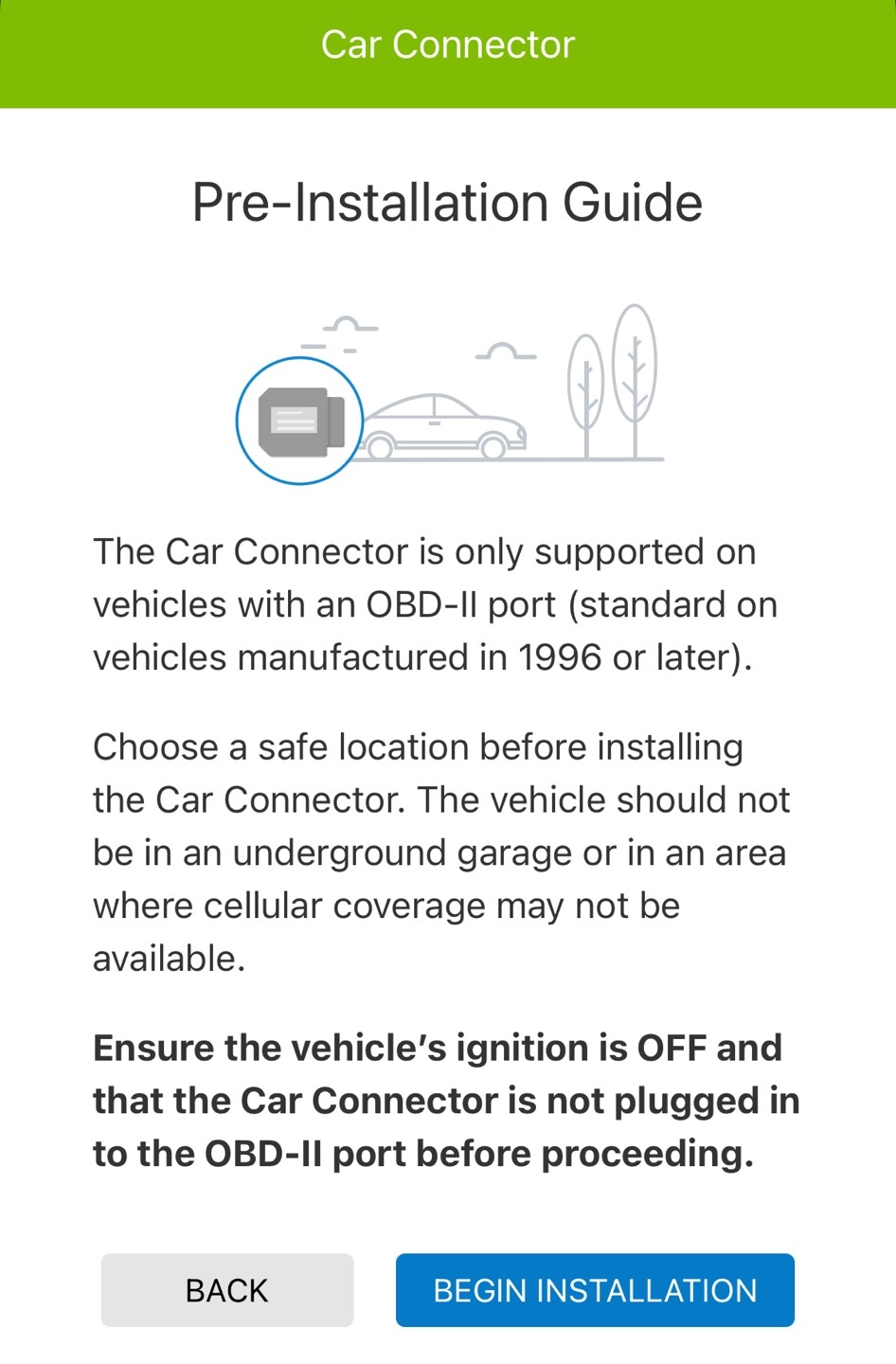
Make sure there is room to plug the Fleet Connector into your OBD-II port and that it won’t interfere with driving or normal vehicle use. If either of these will be a problem, use an OBD-II extension cable to connect the Fleet Connector in a better position.
Do not plug the Fleet Connector into the OBD-II port yet! The Alarm.com app will tell you when to plug it in.
Park the vehicle in a safe location that has sufficient cellular signal for the Fleet Connector to communicate.
Add & install the Fleet Connector
Open the Alarm.com app on your mobile device and tap More.
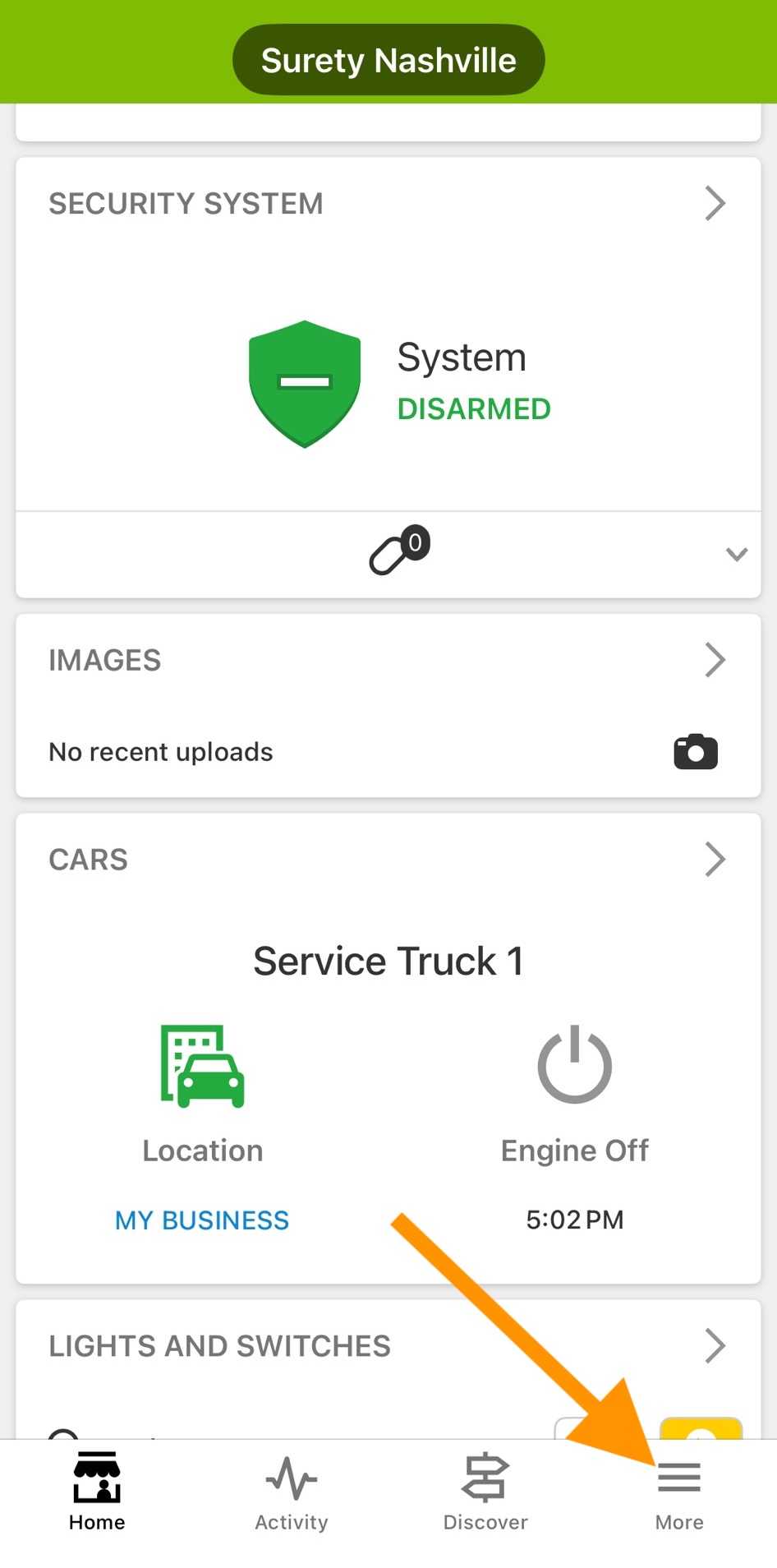
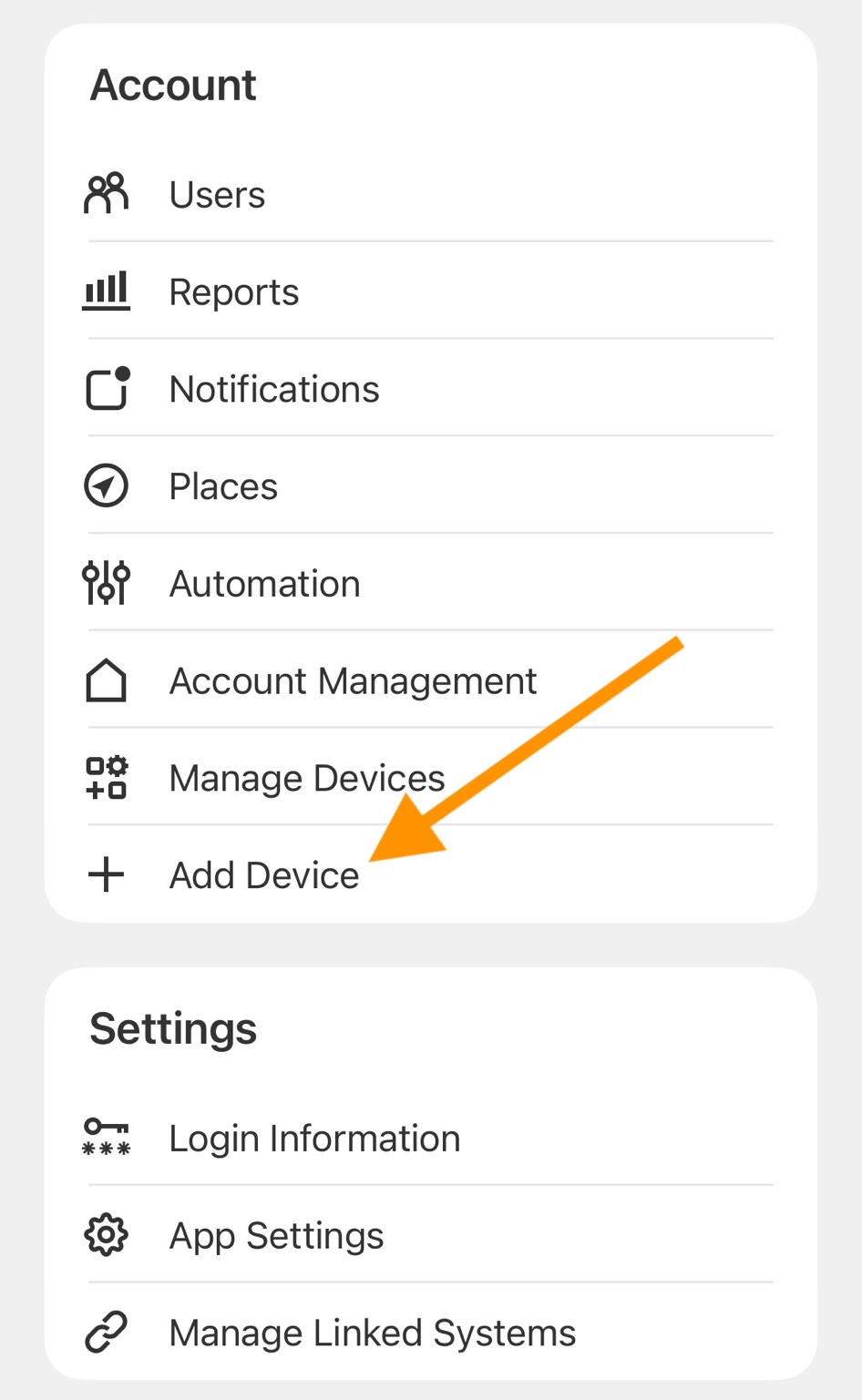
Tap Add Device.
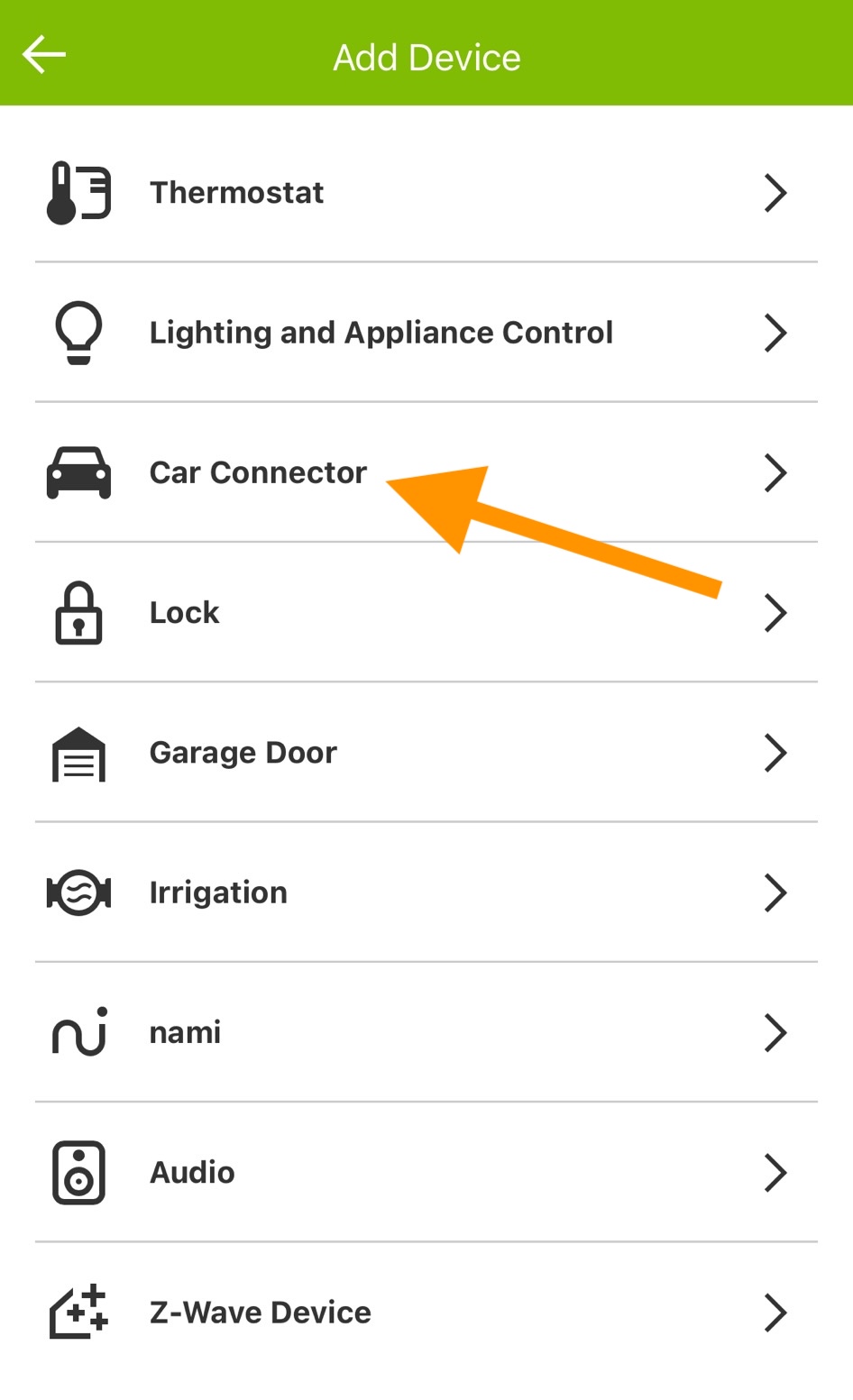
Tap Car Connector.
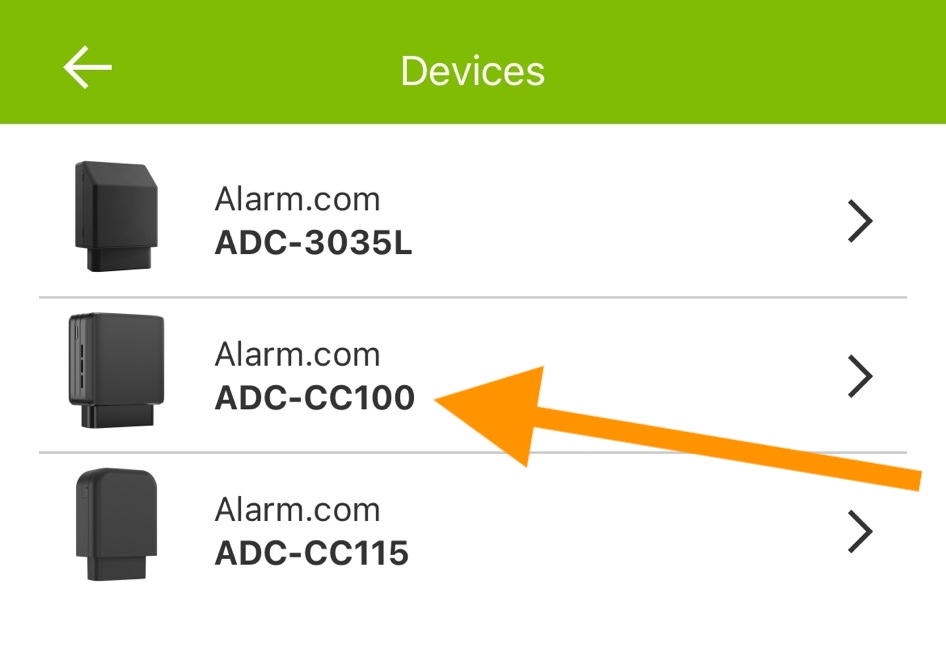
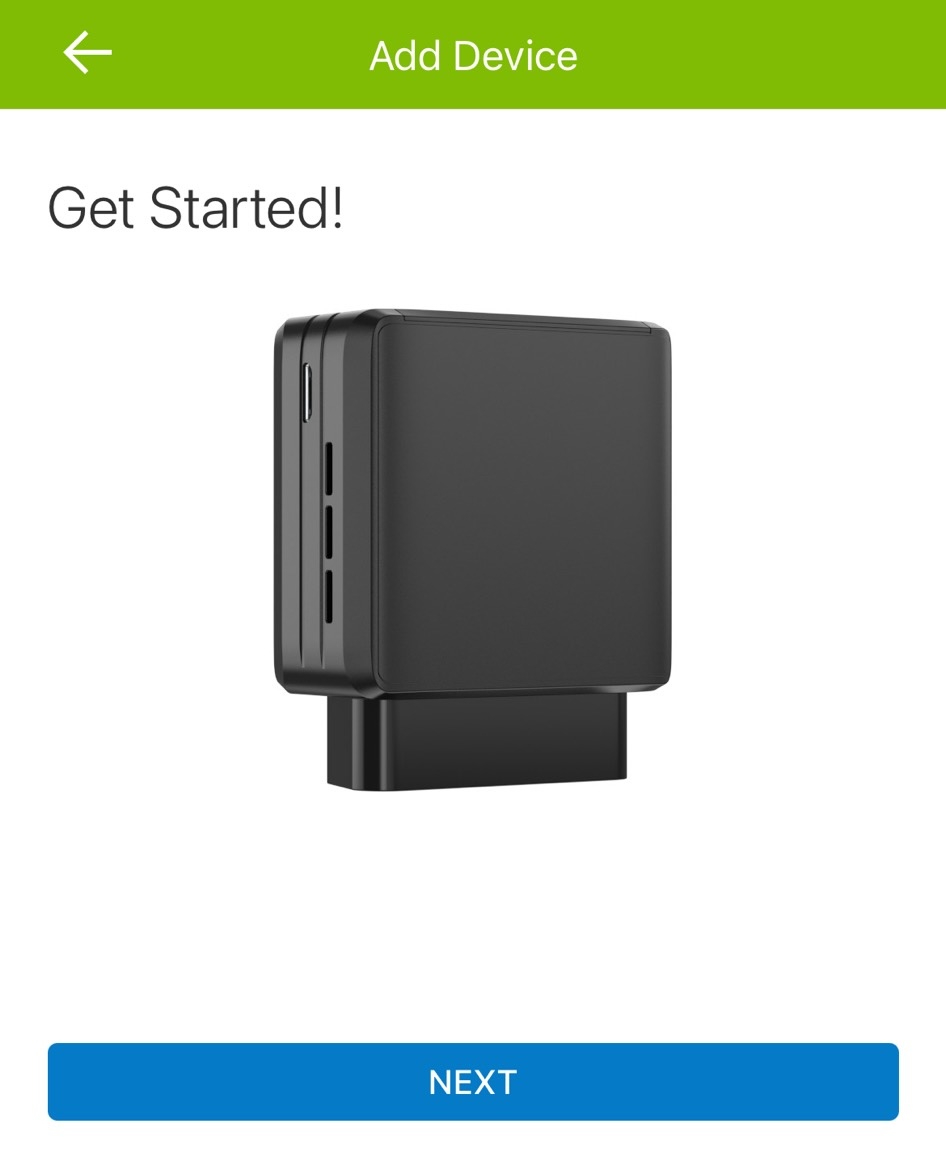
Tap ADC-CC100.
Tap NEXT.
Read the instructions and then tap BEGIN INSTALLATION.
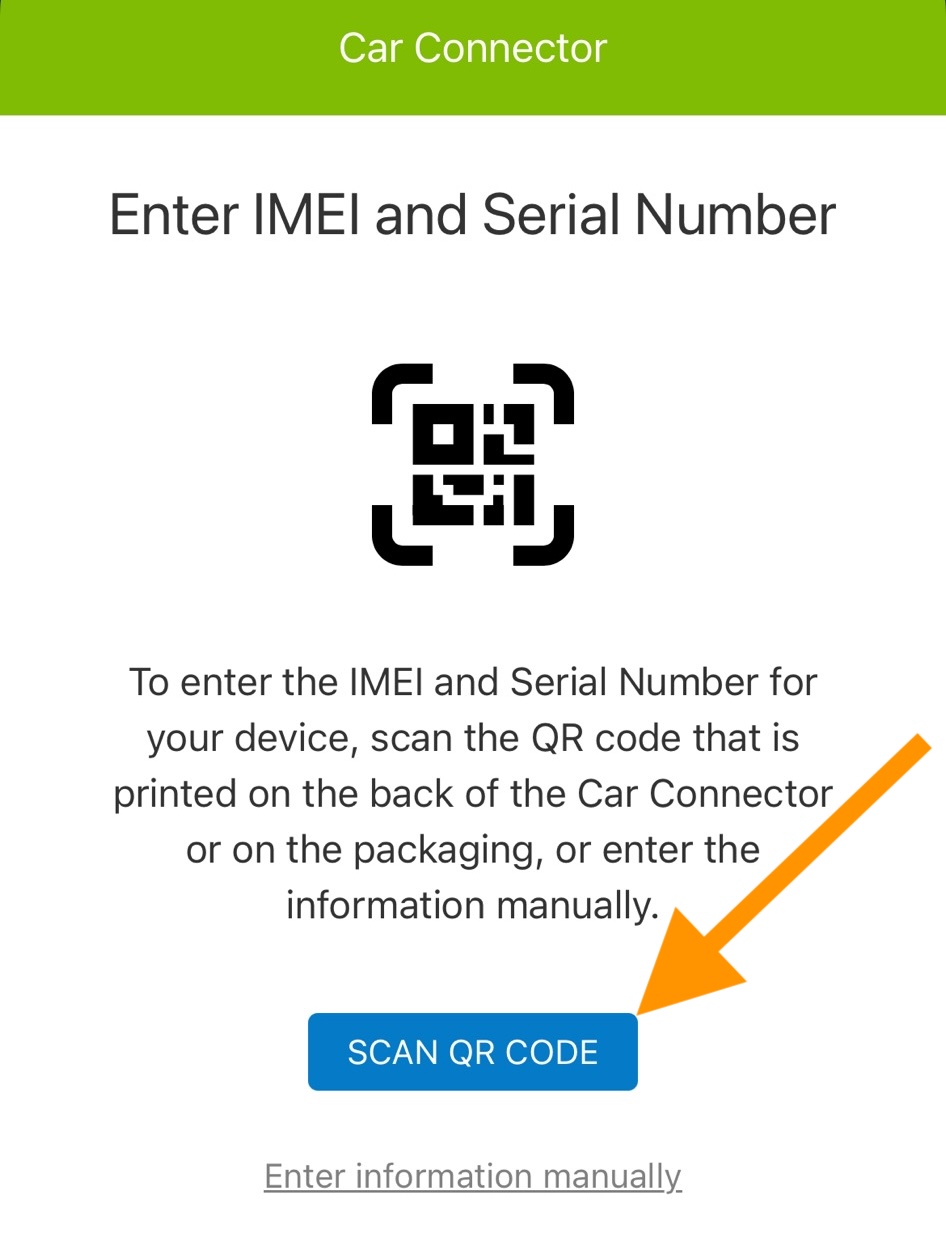
Have your CC100 Fleet Connector in front of you and tap SCAN QR CODE to scan the QR code on the device.
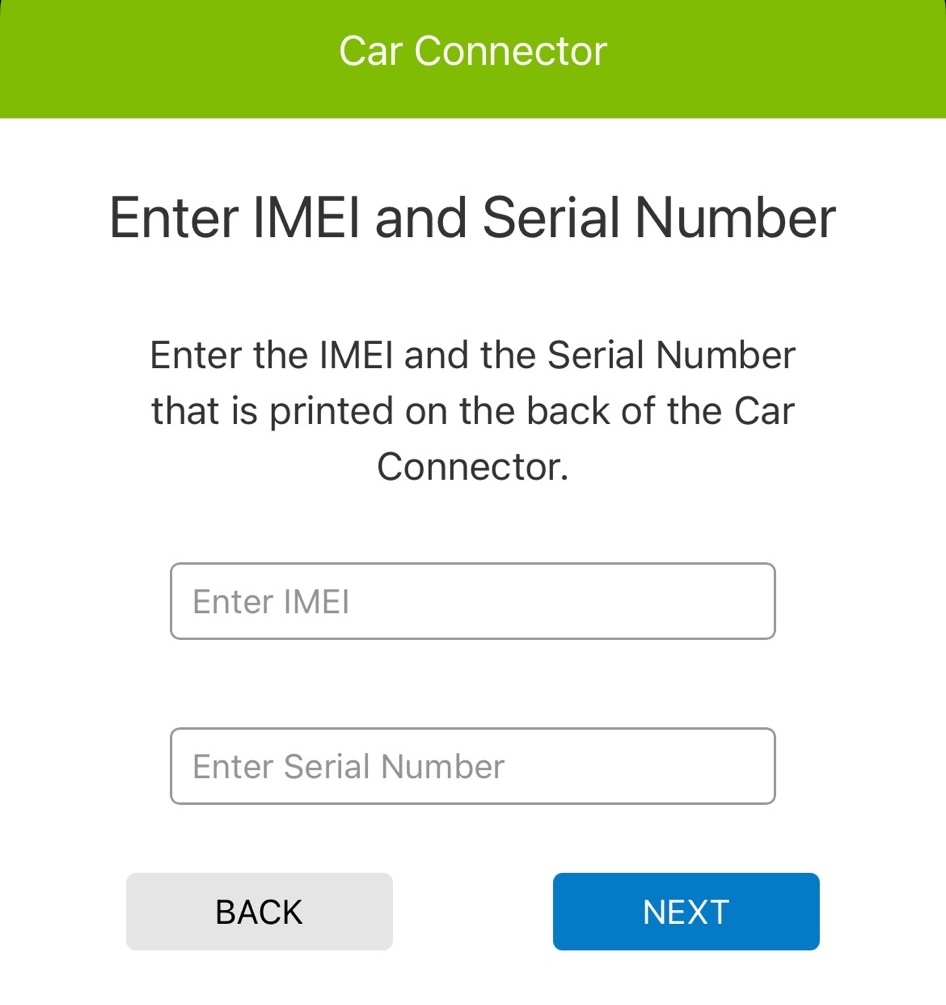
If you and unsable to scan the QR code you can tap Enter information manually and an alternative but scanning the QR code is easier.
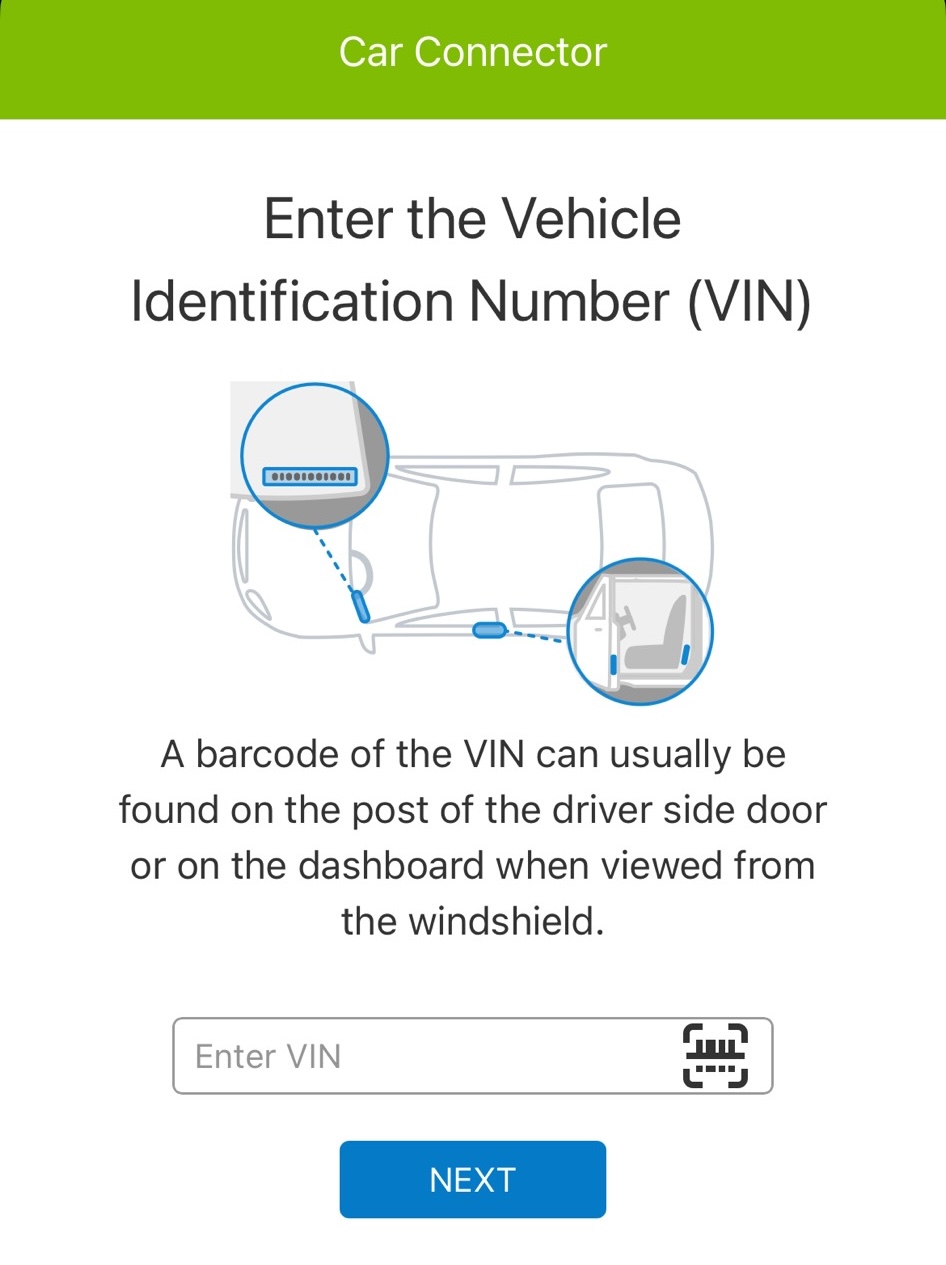
Enter the vehicle’s VIN.
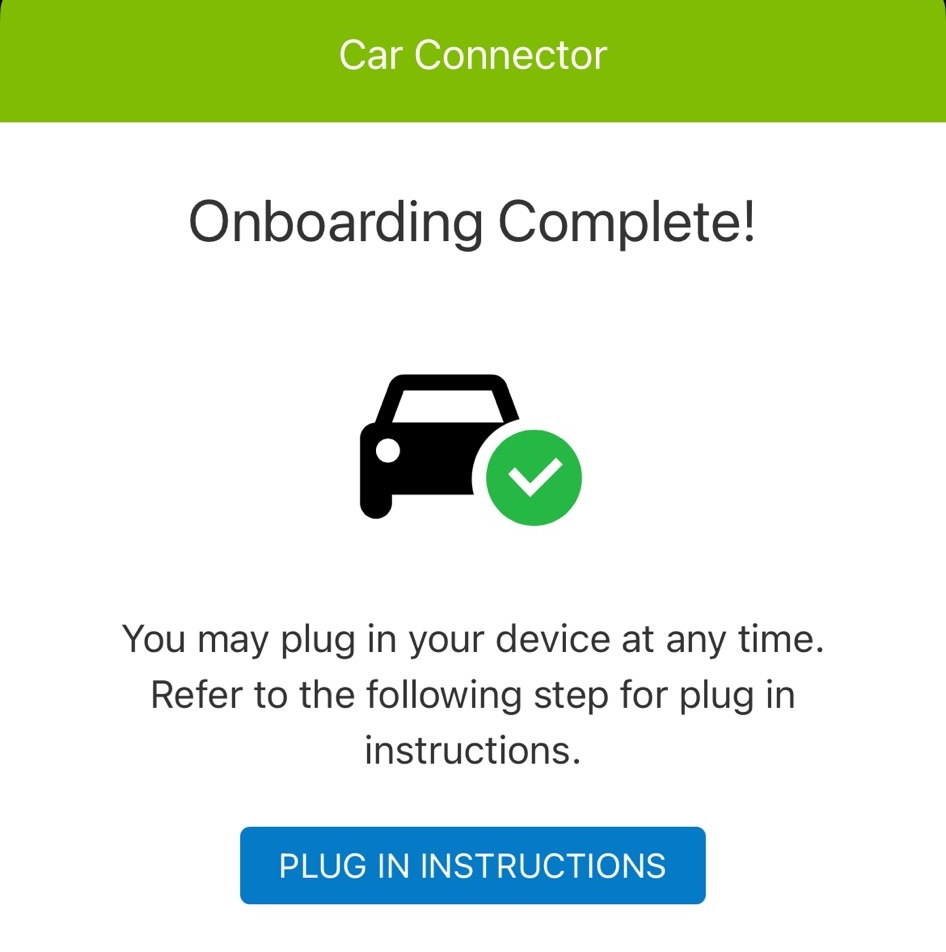
When the Fleet Connector has been added to your Alar.com account the app will say Onboarding Complete!
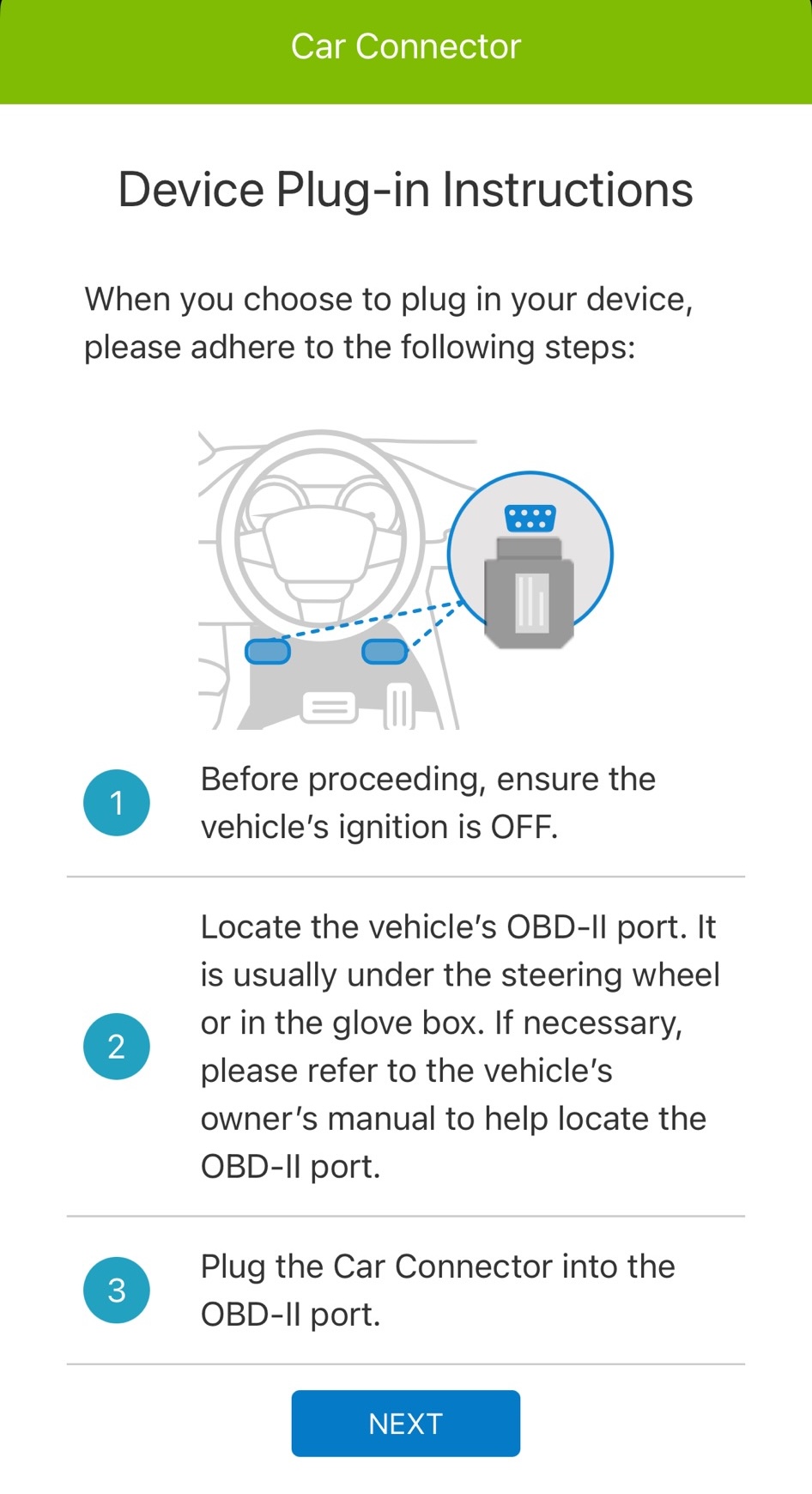
Now plugin the Fleet Connector into the vehicle’s OBD-II port.
Configure & track the vehicle
Read the final instructions to get started and the vehicle is now connected to your fleet.
The Car Connector will undergo an automatic calibration, and the first few recorded trips may have incorrect information. Before and after calibration, the engine status will only update after the vehicle has started or stopped moving for a few minutes.
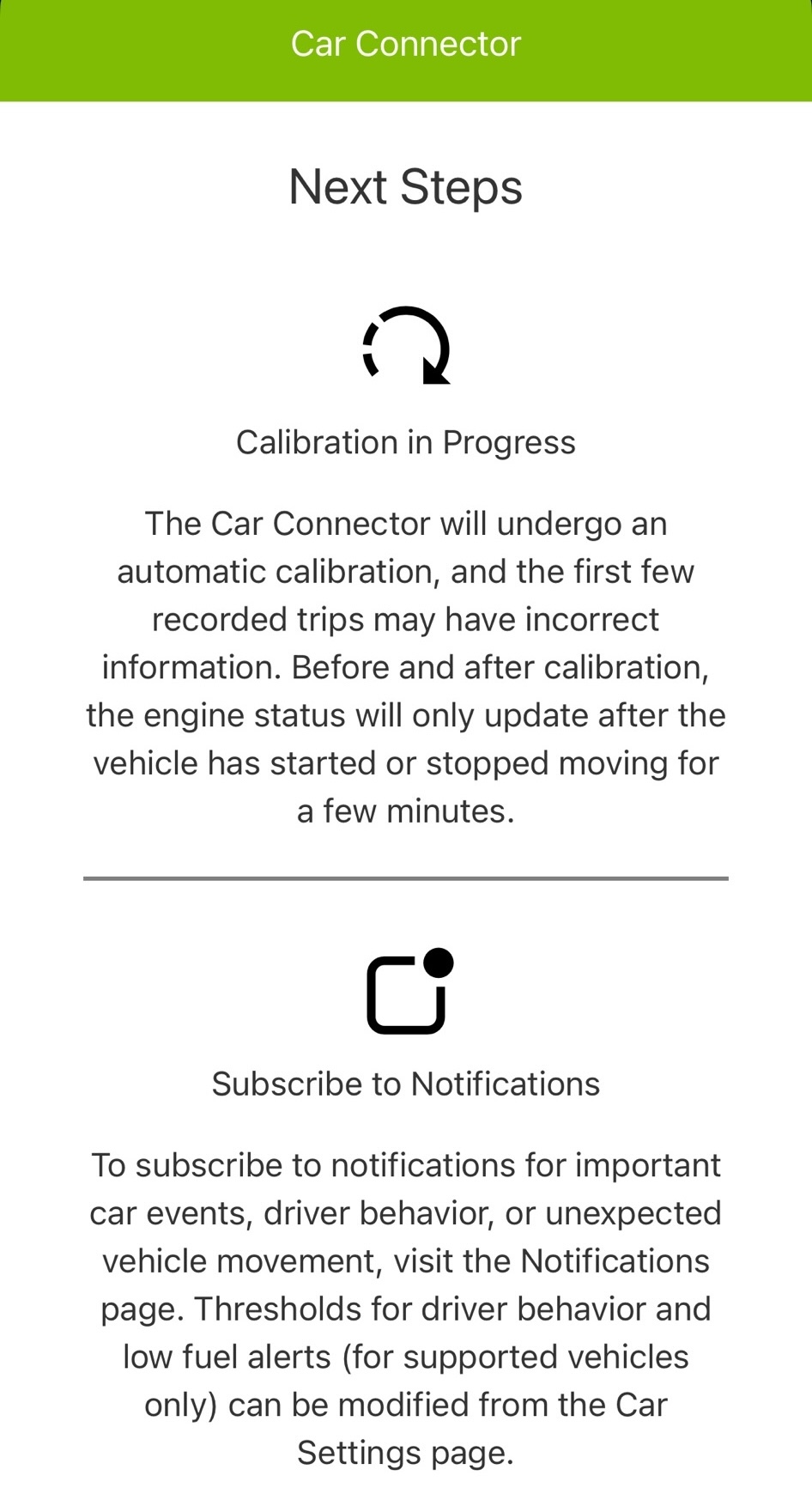
To subscribe to notifications for important car events, driver behavior, or unexpected vehicle movement, visit the Notifications page. Thresholds for driver behavior and low fuel alerts (for supported vehicles only) can be modified from the Car Settings page.
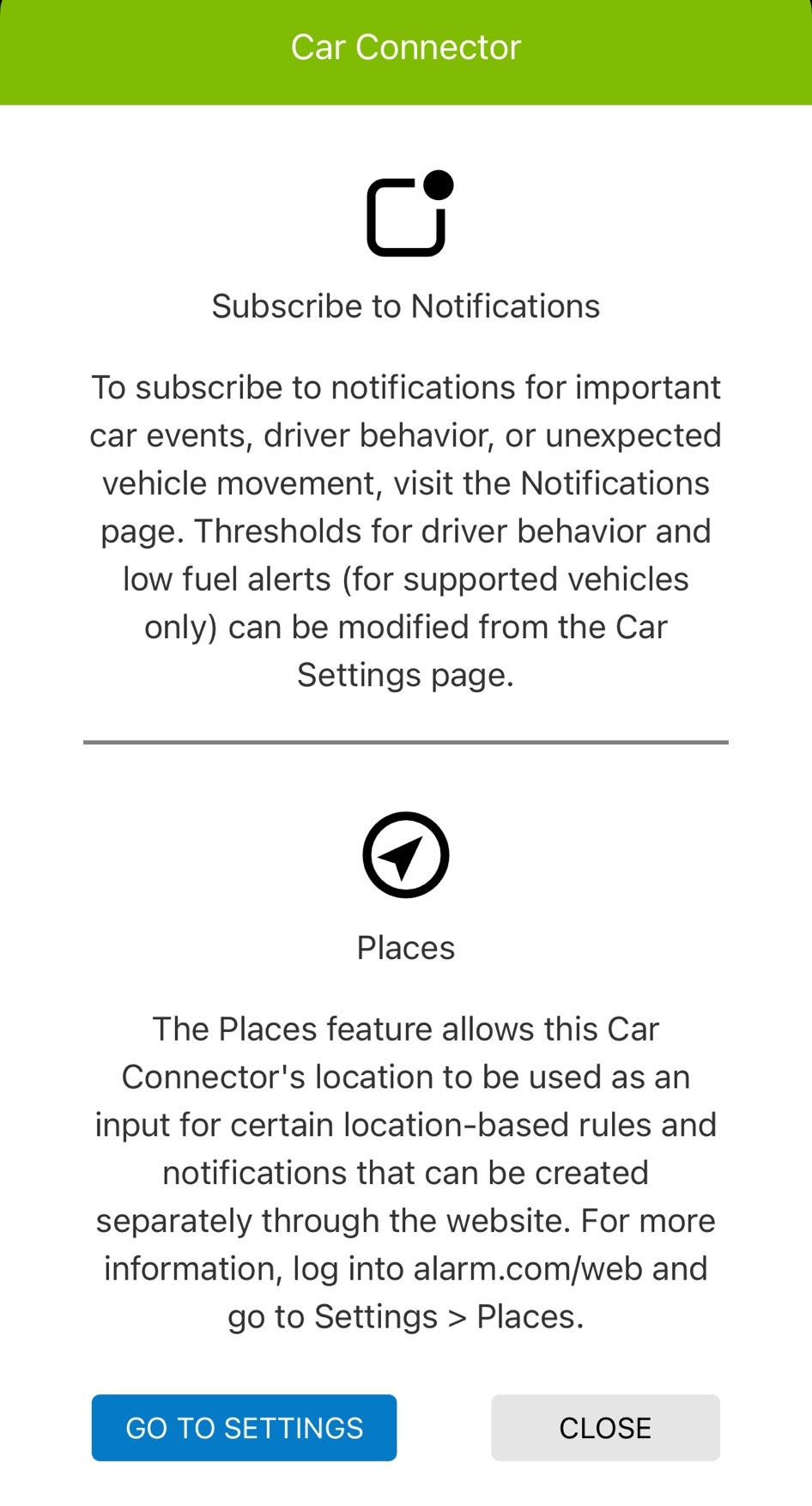
The Places feature allows this Car Connector’s location to be used as an input for certain location-based rules and notifications that can be created separately through the website. For more information, log into alarm.com/web and go to Settings > Places.
Edit the Alert Settings for the vehicle to set parameters such as Excessive Speed Threshold, Sudden Acceleration Sensitivity, Hard Braking Sensitivity, and Low Fuel Level.
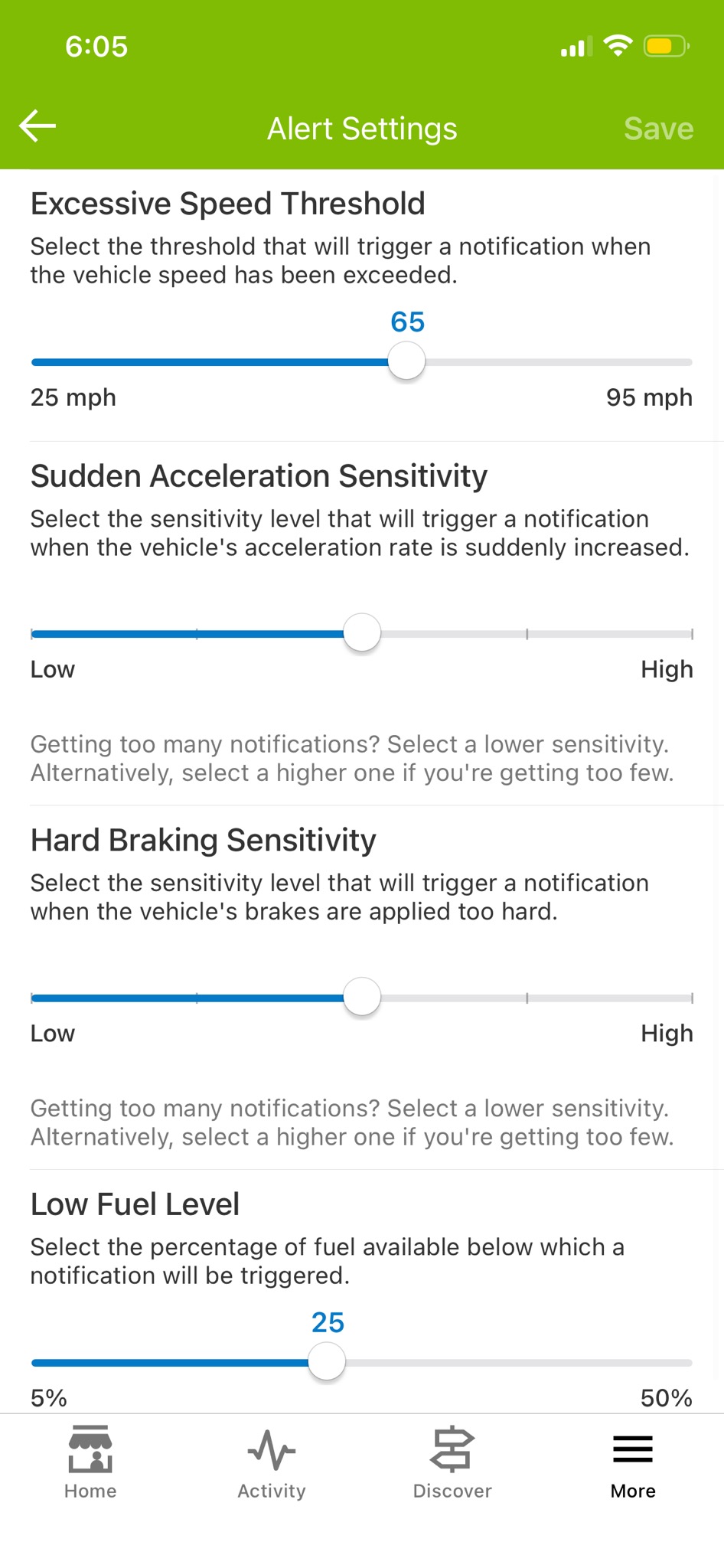
You can always get back to the Alert Settings by going to More > Manage Devices and tapping that vehicle.