I had to factory reset my Yale lock since I had forgotten the master code. I was able to set that all back up but now I can’t get the lock back on my ADC app. I try to remove the “old” lock from my app but it doesn’t work. I try to add the lock to the app as a new lock and it doesn’t work. Nothing works. The z-wave “button” isn’t a button but just an icon etched in the plastic. No two beeps. No five beeps. Nothing works.
Factory resetting the lock does not clear the lock from the panel Z-wave devices, and that will block future attempts to pair it.
To resolve, even though it is not communicating with the panel now, you must go through the Remove Device steps and activate the exclusion on the lock to clear it from the panel.
I am adding the instructions for that step from the guide linked at the bottom:
How to Remove a Z-Wave device from the parent network on an IQ Panel:
- Navigate to the Settings Tray and click Settings
- Click Advanced Settings
- Enter your Installer Code
- Click Installation
- Then Devices
- Z-Wave Devices
- Clear Device.
- While the panel is listening, utilize the Z-Wave devices add/remove feature (see device manual) This is when you would enter programming on that Yale lock and trigger the Z-wave pairing. That should be your lock master code, then 7, then 1 or 3 depending on the status.
Didn’t work. Did the code, didn’t work. Pressed the z-wave “button” didn’t work. Panel times out.
The panel will time out when listening for devices if none send a signal.
Pressed the z-wave “button” didn’t work
There is no single Z-wave or programming button on a Yale lock. Just to clarify, to enter Z-wave inclusion/exclusion mode on the lock you would:
- On the lock enter your lock’s programming code.
- Press 7.
- Press 1 (or 3 for removal)
Yes, I did the code process correctly and the panel did not respond in any way.
You have a door lock labeled Front Door in malfunction. Is that the one in question that needs re-added?
I can send a command to try and delete it remotely, but the lock itself must be powered off so that it cannot communicate at all at the time. Can you remove the batteries and let me know when ready? Then I can send that command.
I’ve removed the batteries and am ready
I’ve sent that command and it looks like it was successful. Can you try powering up and running through the add device process now? Any luck?
I input my master code, press the gear, then press 7 but the 7 doesnt beep or do anything, only 1-4 respond as options.
I found two different documentations for this. The first one is attached below
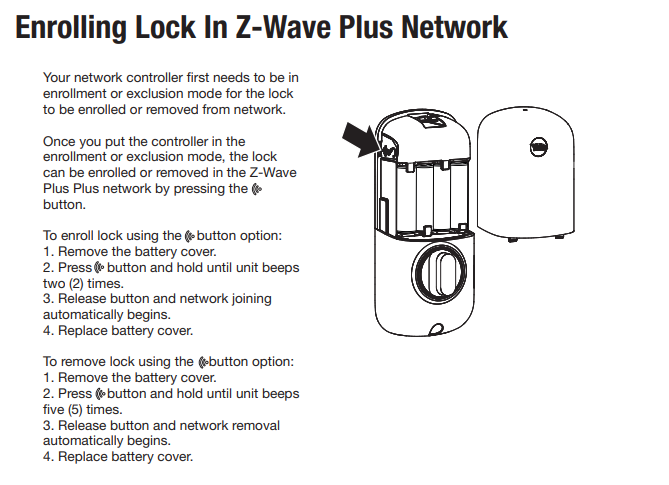
The second is a few steps found below which sound like it was the one you were trying but be sure to press the gear after the 7 in step 2. Be sure you are using the master code you created when initially setting up the door lock after the reset
Exclusion
- Enter the 4-8 digit master PIN code followed by the gear key.
- Press the 7 key followed by the gear key.
-
- Press the 3 key followed by the gear key.
Inclusion
- Enter the 4-8 digit master PIN code followed by the gear key.
- Press the 7 key followed by the gear key.
-
- Press the 1 key followed by the gear key.
As you can see from the previous posts in this thread, both of those methods have already been attempted.
If you look at page 17 of the manual it shows all of the code branches and the only options available after the master code are 1, 2, 3, 4, and 6. There is no 7.
Alright, I figured it out. What a terrible manual.
The button you press and hold is the factory reset button that you have to use a safety pin to reach. Instead of showing a head-on view pointing to this button, the diagram gives you that weird side view with the arrow pointing to all 3 things on that side.
I don’t know what model lock the pressing 7 stuff is for but it isn’t this one.
I am showing one Z-Wave door lock, Front Door, connected without issue. Is this device working as desired on your end at this time?
If you have not done so yet, after pairing all Z-Wave devices, you will want to run a Z-Wave Network Rediscovery from the panel to map out the best communication pathways for your devices.
To run a Network Rediscovery from the panel, Navigate to the Settings Tray and click Settings > Advanced Settings > Enter your Installer Code Then select System Tests > Z-Wave Tests > Network Rediscovery. Lastly, select all devices via the checkbox and Rediscover