I have to use “Arm Stay” because of my big dogs. It would be so lovely to be able to arm stay in the Apple Car Play interface.
Any chance of that happening soon?
thanks..
a nice Karen
I have to use “Arm Stay” because of my big dogs. It would be so lovely to be able to arm stay in the Apple Car Play interface.
Any chance of that happening soon?
thanks..
a nice Karen
You can use scenes in CarPlay and create a custom scene which arms the panel stay. For steps on how to create/edit scenes and configuring Apple Carplay settings see the guides linked below. When configuring the Apple CarPlay settings, the Home and Away Scenes, as well as compatible garage doors, appear at the top by default. All other custom Scenes appear under the More Items section by default.:
Thank you for the reply.
Arm Stay is not an option in “more”
Please help
For it to show up in the More section, you will need to create a custom scene that arms the system stay. Once you’ve created the scene, it will show up there and you can select it to arm the system.
Alternatively, you can edit one of the default scenes, such as the away scene, and change it to arm the system stay.
thank you for your patient help
I am an old lady.
I don’t know how to create a scene in the car play.
The scene I need to display in car play is “arm stay”.
It is already there in my app but not in my car in car play.
Can you please give me step by step instructions?
God bless you.
It’s a little confusing, I admit. Your Alarm.com account comes with some scenes out of the box called Home, Away, Sleep, etc… Those should show up in CarPlay. The scene called Sleep is a scene that just arms away. If you see the Sleep scene in CarPlay, try using that to arm. You can change the name and icon of the Sleep scene if you want.
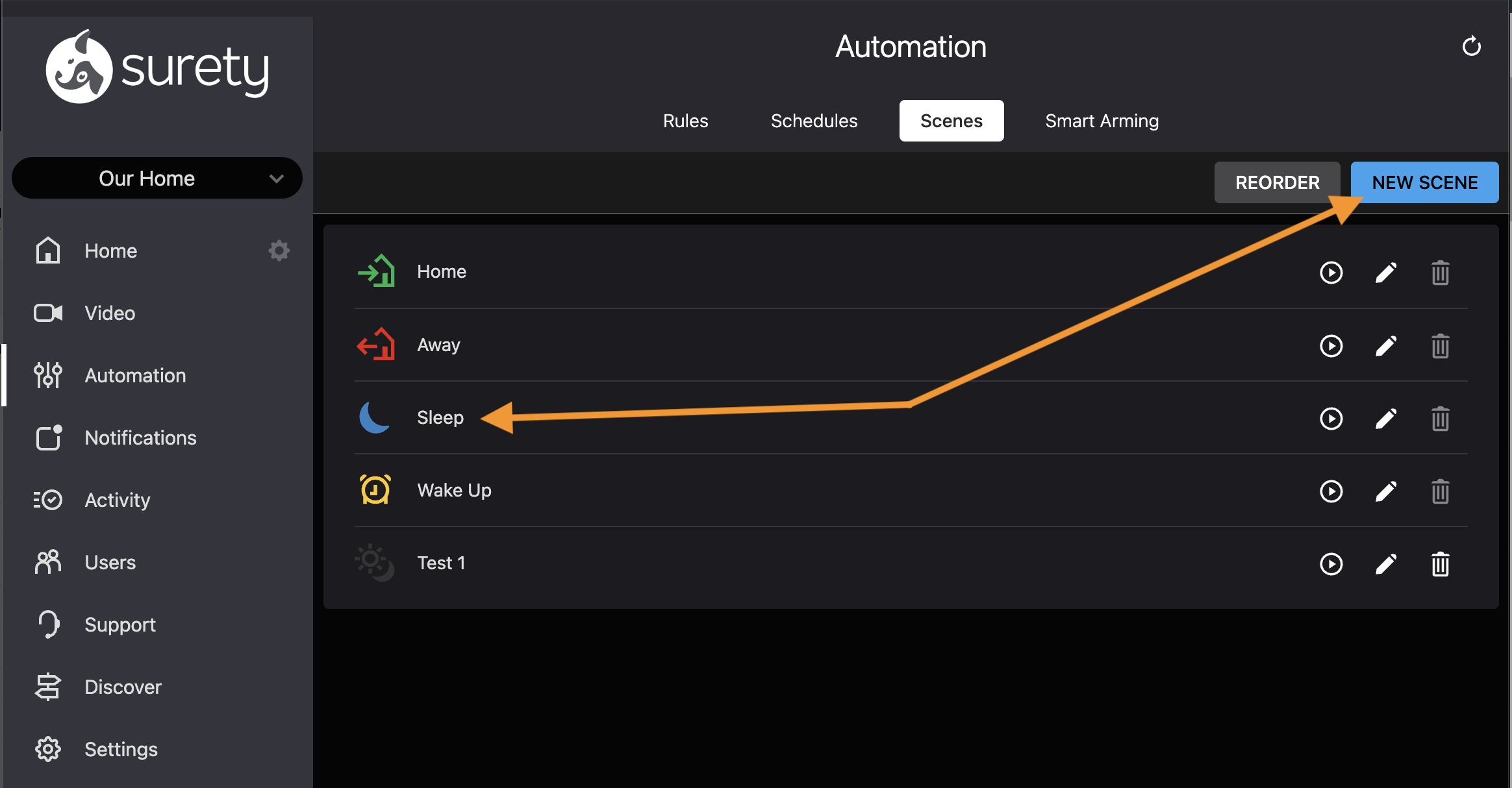
If you don’t see a Sleep scene in CarPlay then you can create a new scene to Arm Stay. To do that, log into the Alarm.com, go to Automation > Scenes and use the NEW SCENE button in the upper right.
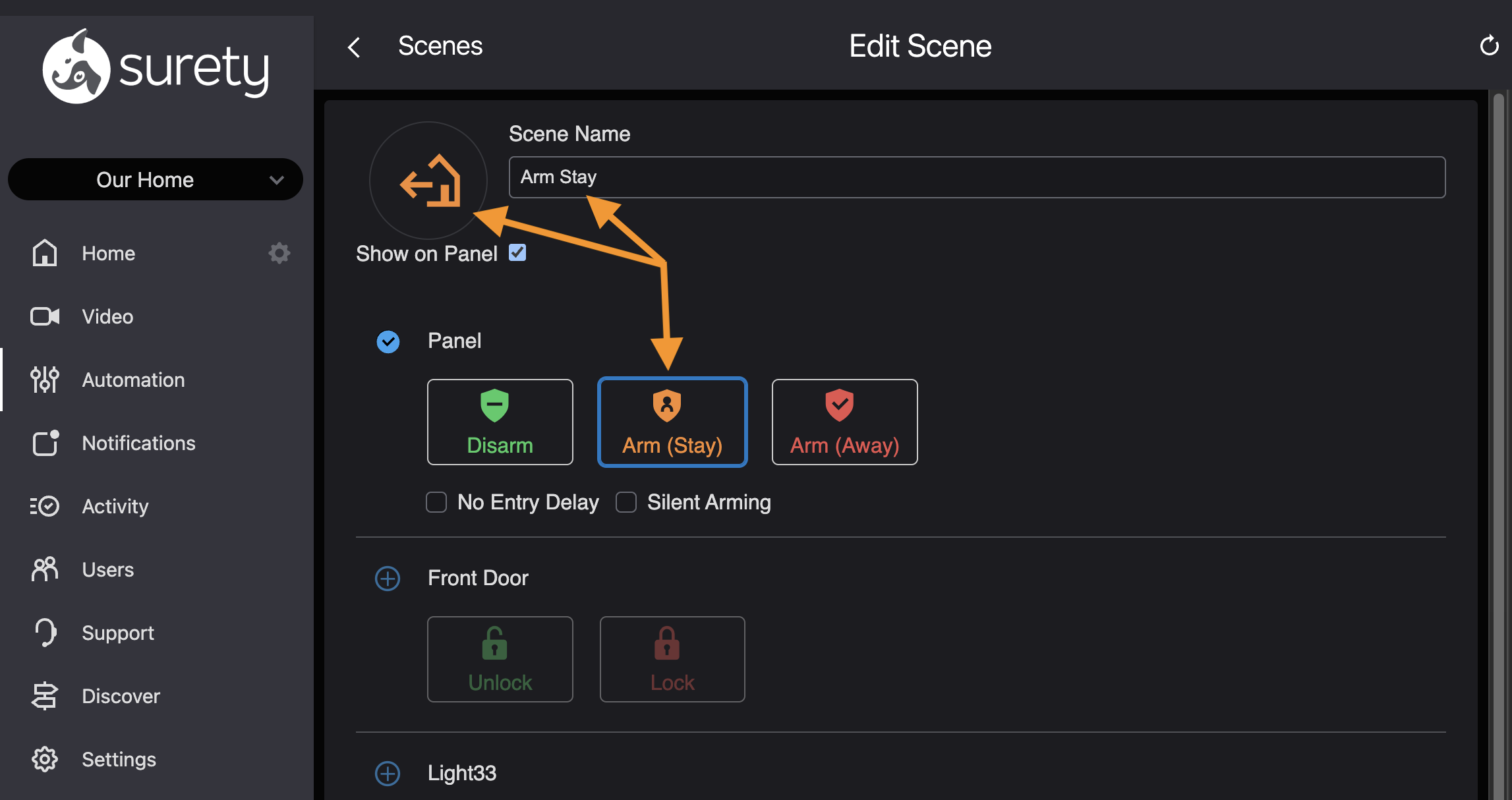
Give the new scene a name such as Arm Stay and choose an appropriate icon and color for it. I’d use orange to match what the Alarm.com app uses for arm stay.
In the Panel section, choose Arm (Stay) as the panel action. Then save the scene. Now you have a custom scene called Arm Stay that should show up in CarPlay under More…
Thank you so much for your patience.
I’m very sorry to be so much of a problem. I’m trying hard to fix it.
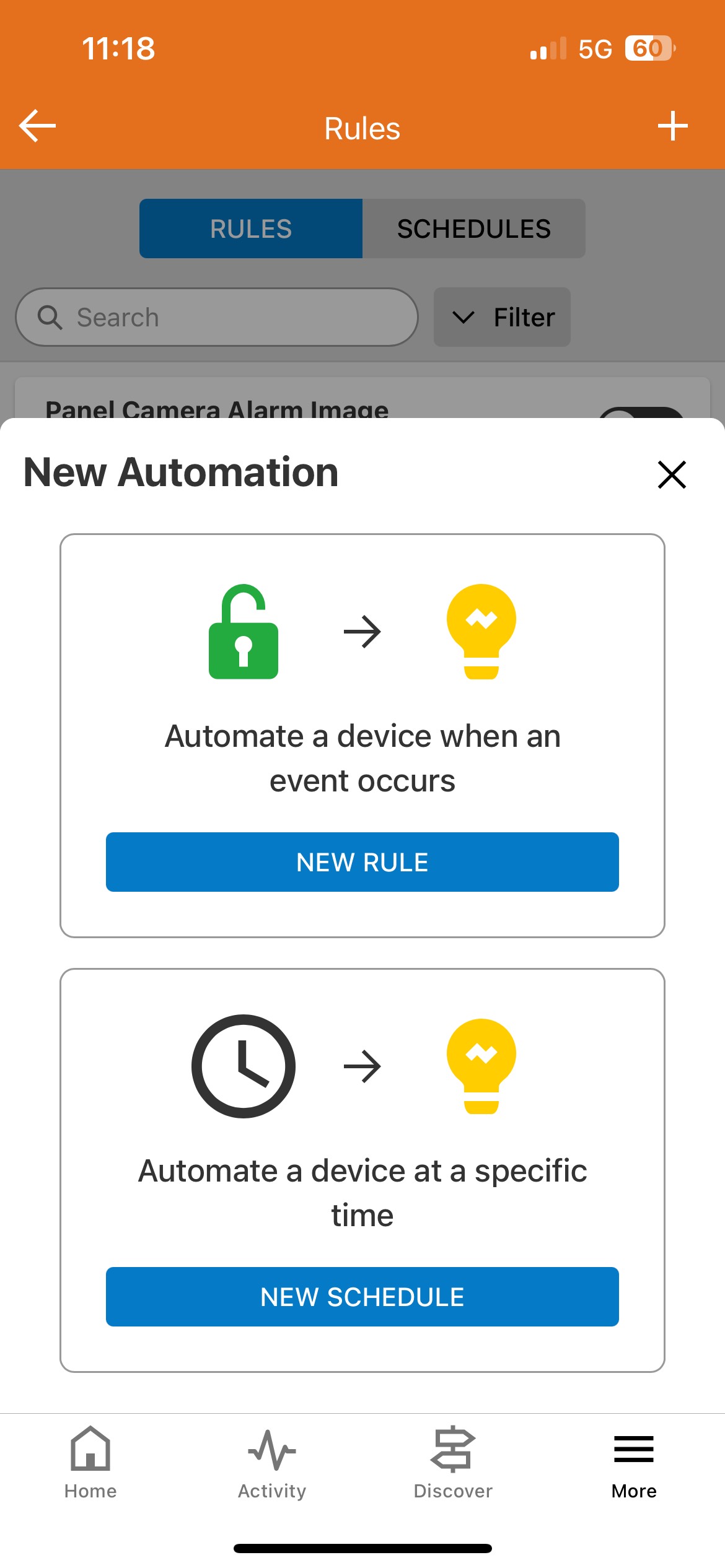
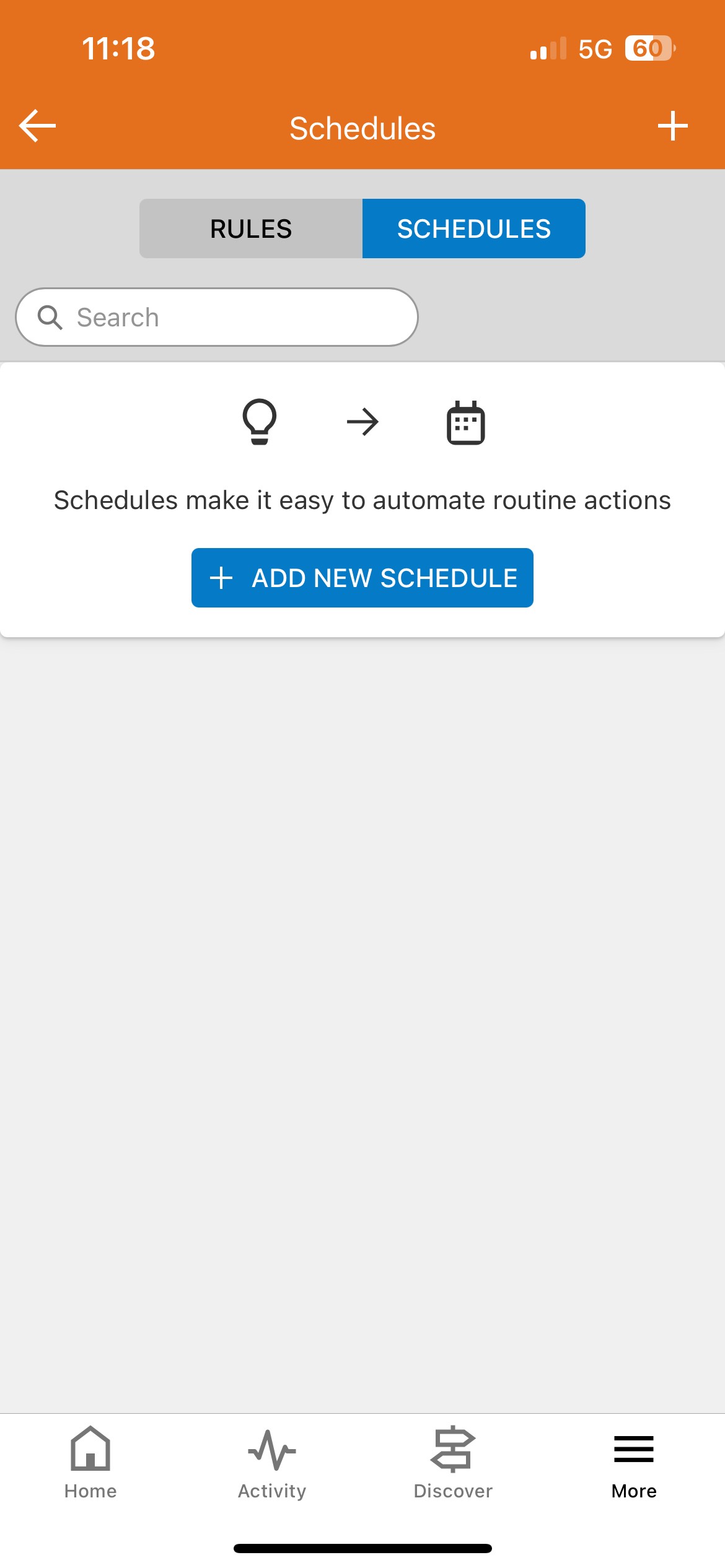
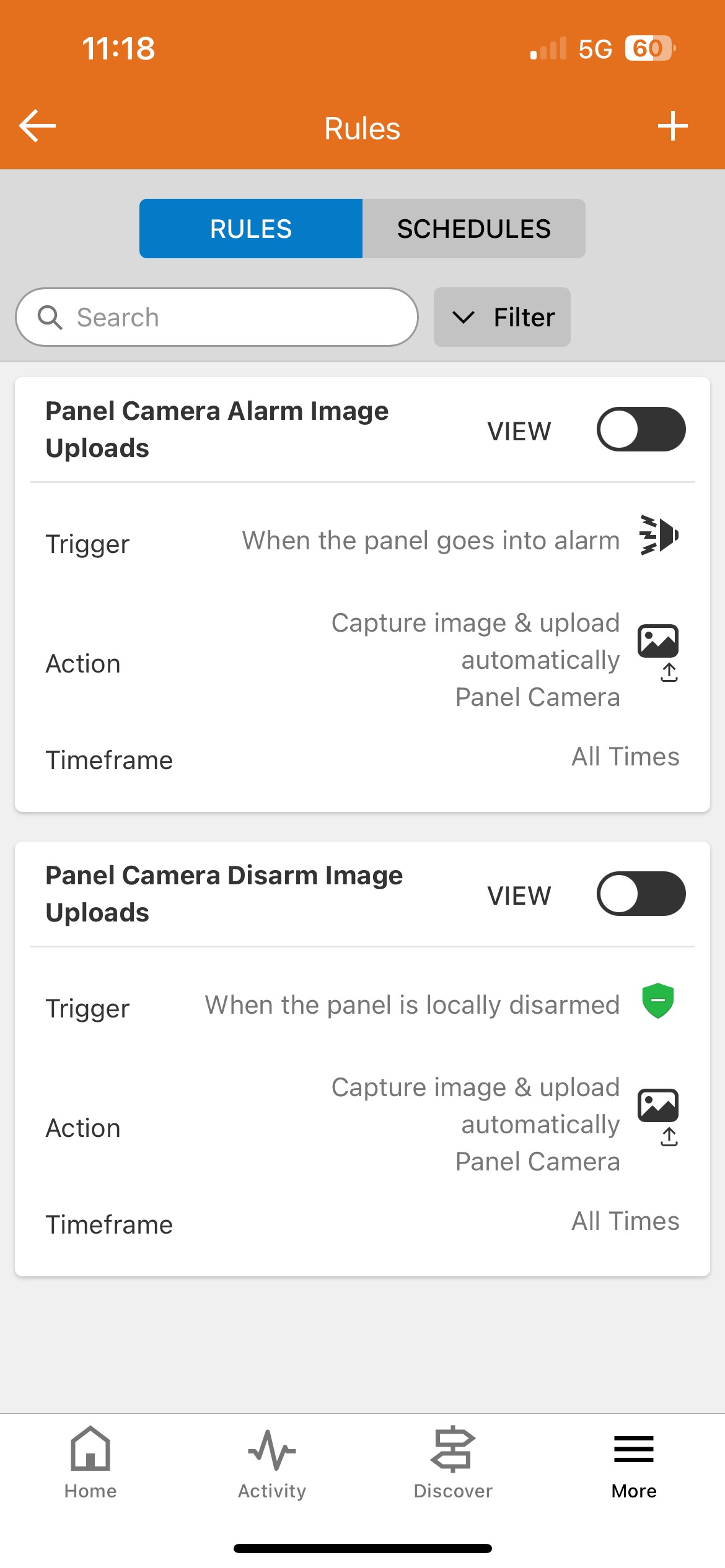
Here’s what shows up under automation:
See attached
after the first two pictures is a screenshot of what happens in automation and I clicked the plus sign upper right
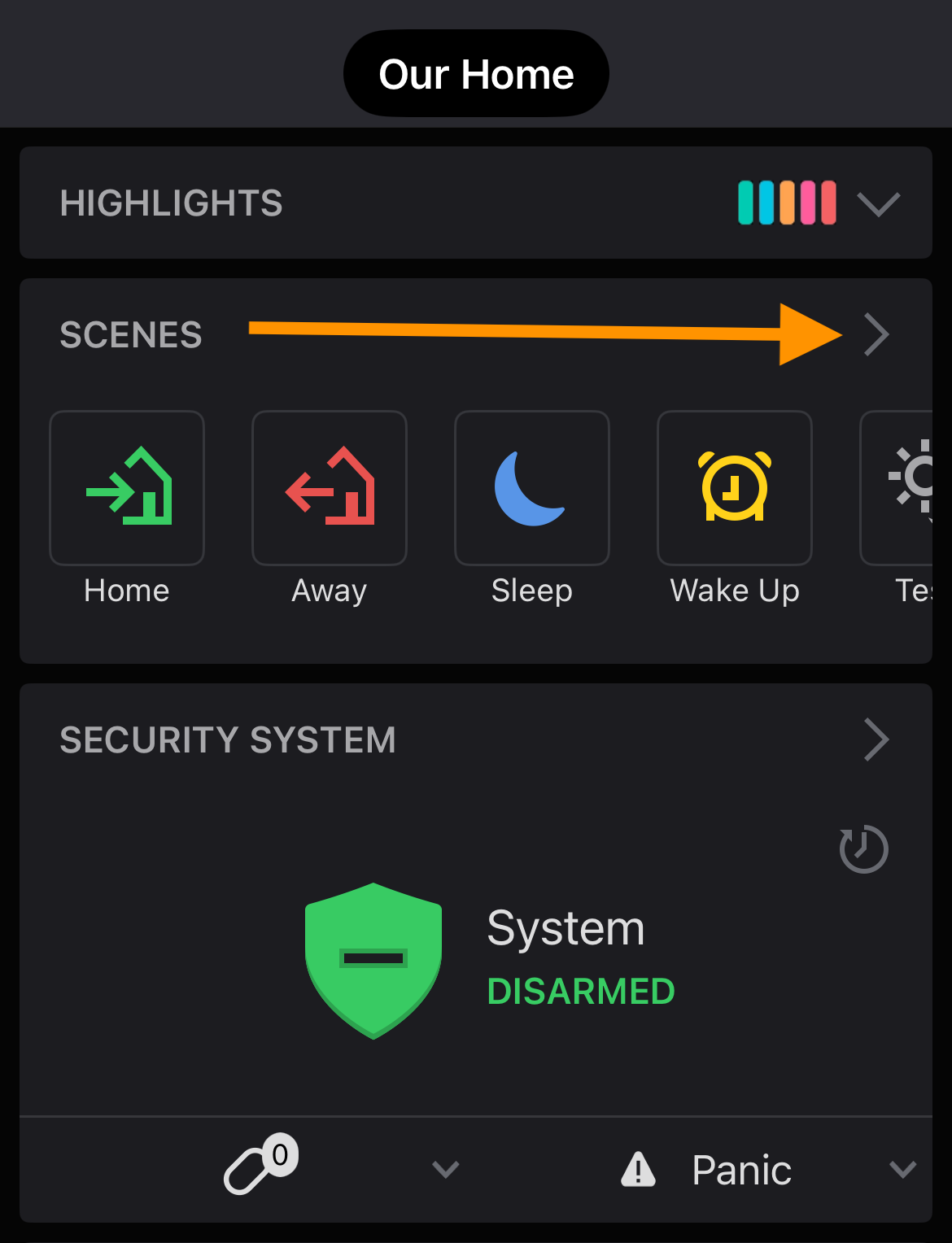
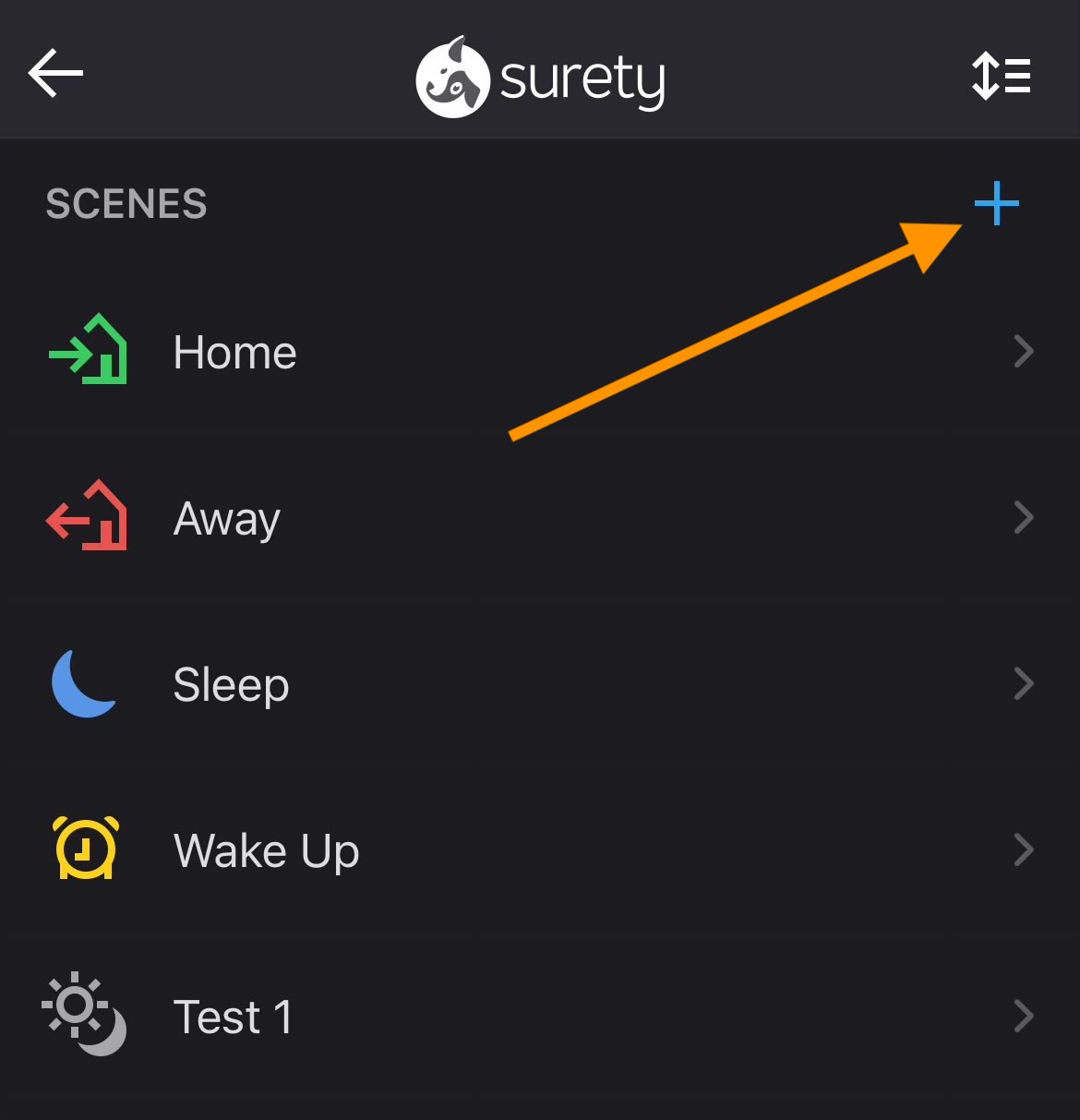
Ah I see, you’re using the Alarm.com mobile app instead of the Alarm.com website to create the scene. In that case getting to the Scenes area is a little different. There should be a Scenes card on the app home screen. Touch the little right-arrow in it to go to Scenes.
Use the + button to add a new scene.
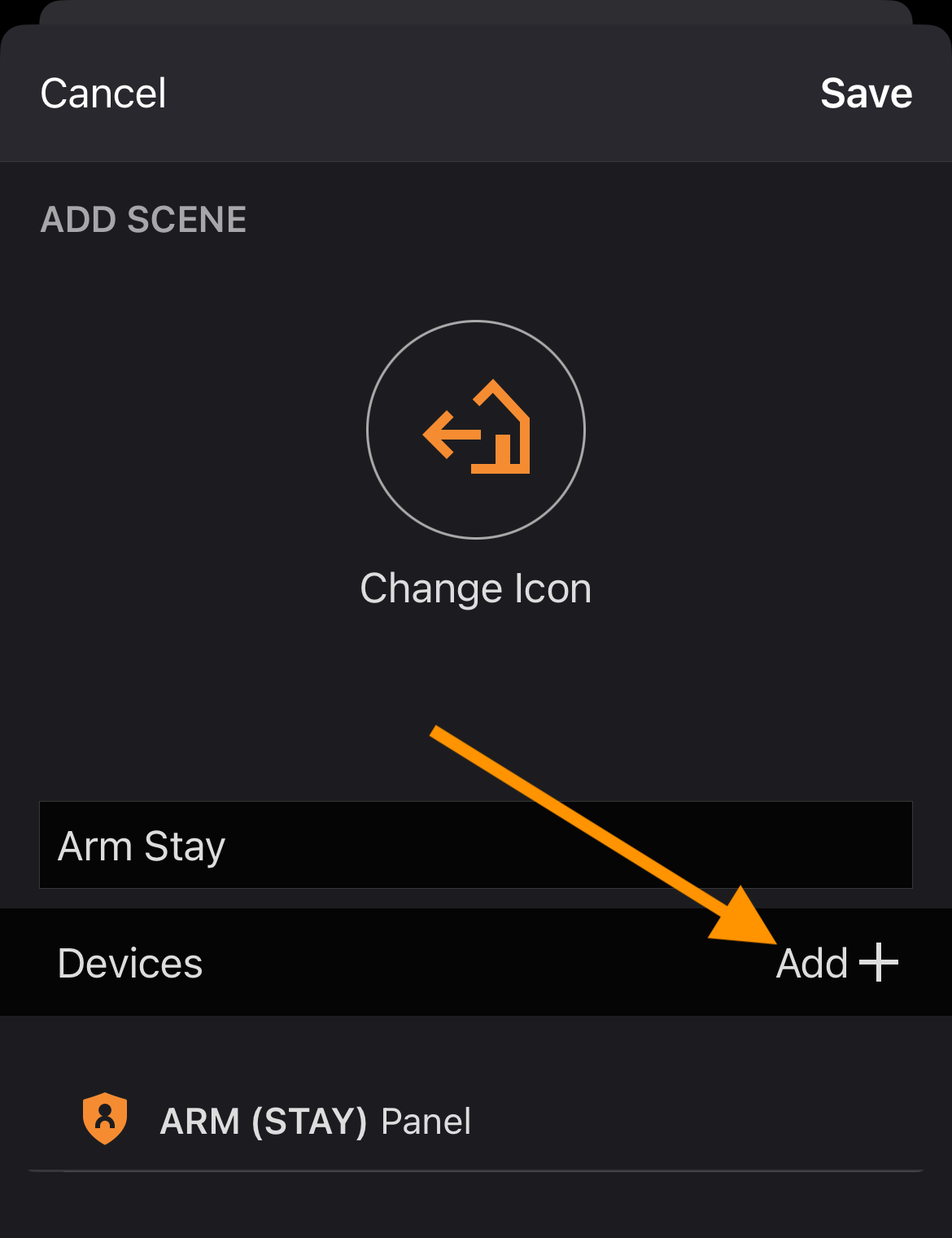
Give the new scene a name, edit the icon and color. Use the Add+ button to add a device to the scene. Choose Security System > Panel and choose to have it Arm (Stay).
I prefer editing this stuff in the website but it can be done in the app as well. Getting there is just a little different.
Thank you so much for your kindness and patience towards me.
My compliments to your mother. I’m sure she’s very proud of you.
I think I’ve got it!!!
Thank you, thank you thank you!!