My Circle Overview
Alarm.com My Circle is an in-app feature that helps you stay connected to the people you care about most, no matter where life takes them. It gives you a real-time dashboard and built-in location sharing so your family has a simple way to check in, stay aware, and know everyone’s okay.
My Circle is a different kind of security. Most of what you get from Surety protects your property. My Circle protects your people. It sits alongside Alarm.com Wellness and the Alarm.com Safety Button as part of Alarm.com’s personal safety toolkit. Where Wellness uses the security system already in the home to keep an eye on someone, My Circle uses the app on their phone, so it goes wherever they do. There is no hardware to buy, nothing to install, and nothing to mount on a wall.
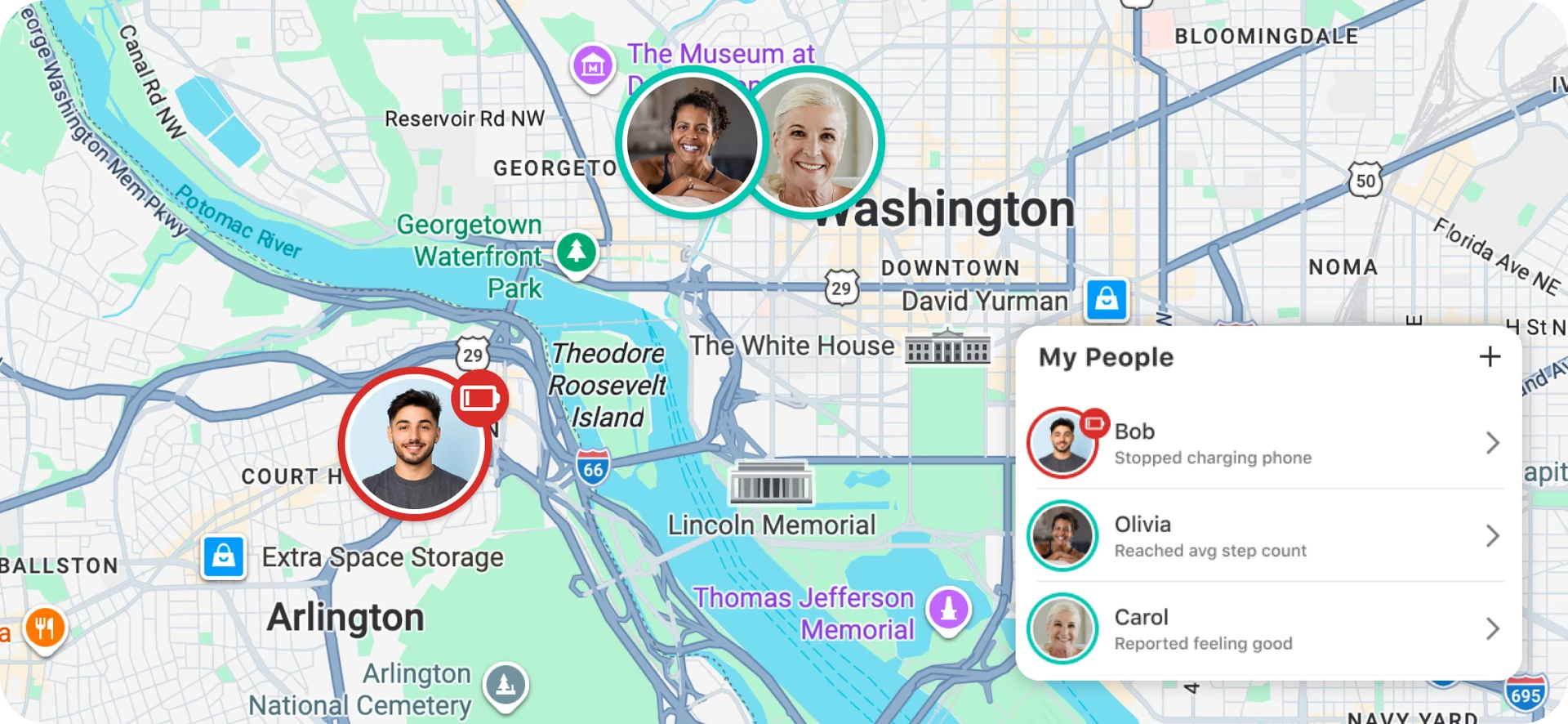
The people in your circle each get a profile in the Alarm.com app. Their phone reports a handful of simple signals, and you see those signals at a glance: how they’re feeling, where they are, how much their phone battery has left, and how many steps they’ve taken today. Color coding tells you whether everything looks normal without you having to read anything. Green means things look good, orange means someone may be worth checking on, and red flags a potential problem.
Instead of texting “you okay?” and waiting for a reply, you open the app and you already know.
Features
At-a-Glance
The At-a-Glance view is a quick snapshot of each person’s day: activity, mood check-ins, and home or away status, all in one place. Each person in your circle gets a card with their profile picture, their nickname, and their current status. You can see the whole circle in one scroll.
Real-Time Map
The map shows where the people in your circle are at any given moment. No check-in texts required, and no waiting for someone to reply. Alongside the map, home and away status comes from Alarm.com Places geofences, so you also get arrival and departure alerts for the locations that matter.
The Four Signals
My Circle tracks four things, all sourced from the phone in your loved one’s pocket:
| Signal | What it tells you |
|---|---|
| Feeling | Your loved ones share how they’re feeling with a single tap in the Alarm.com app. |
| Location | You get alerts when a loved one leaves or returns home, based on a Home location you set using Alarm.com Places. The Real-Time Map shows their current position. |
| Battery | You can see a loved one’s phone battery level and get an alert if it gets too low. |
| Activity | You can see daily step counts and get an alert if no steps are detected in 24 hours. |
Each of these is small on its own. Together they tell you whether someone is up, about, and okay.
Why My Circle
The four signals sound simple because they are. What makes them useful is what they tell you when you put them together.
Check in on how loved ones are feeling. The Feeling check-in is one tap, which is the difference between reporting and not reporting for people who wouldn’t otherwise reach out when they need help. A teenager having a bad day and an aging parent who doesn’t want to be a bother are both far more likely to tap a button than to place a call. If someone’s check-in comes back poor, you know to reach out, and you know before it becomes a bigger problem.
Monitor the location of loved ones. Knowing where someone is answers most of the questions you’d otherwise text about. Did they get to school? Did they leave work? Have they been out of the house since this morning? You also get notified automatically when someone arrives at or leaves home, so you don’t have to go looking.
Monitor their phone battery level. A dead phone is the reason most “why aren’t you answering?” panics happen. Seeing that someone’s battery is at 4% turns an alarming silence into an ordinary explanation. It also works the other way: if you’re relying on someone’s phone to know they’re okay, you want to know when that phone is about to stop reporting.
See how many steps they’ve taken today. Step count is a low-tech proxy for “up and about.” Zero steps by midafternoon from someone who normally walks the dog every morning is a reason to call. That’s the signal that catches a fall, an illness, or someone who’s stuck and hasn’t told anyone.
Who It’s For
My Circle is aimed squarely at two situations.
Families with teenagers. New drivers, first jobs, practices and jobs and friends’ houses. My Circle answers “where are you and are you okay?” without turning into a negotiation, and the Feeling check-in gives a kid a low-friction way to say they’re having a hard time.
Families with a parent aging in place. This is the case My Circle was really built for. Steps, location, and mood together are an early warning system. Combined with Alarm.com Wellness and an Alarm.com Safety Button for emergencies, you get a picture that follows your parent at home and away from it. If aging in place is why you’re reading this, our writeup on helping a parent age in place with Alarm.com covers how the pieces fit together.
How It Compares to Wellness and the Safety Button
All three of these watch the person rather than the property. The difference is what they use to do it.
| Feature | What it watches the person with | What it sees | Where it works |
|---|---|---|---|
| My Circle | The Alarm.com app on the person’s phone | Feeling, location, phone battery, steps | Anywhere the phone goes |
| Wellness | The security system already in the home: door sensors, motion detectors, pressure pads, alert buttons | Daily routines and activity patterns, measured against a behavioral baseline | Inside the monitored home |
| Safety Button | The Alarm.com app on the person’s phone | Nothing passively. It’s an on-demand emergency signal to the monitoring station | Anywhere the phone goes |
Wellness uses the security system in the house to watch the person. My Circle uses the app in their pocket. The Safety Button is what they press when something has already gone wrong. All three protect your people rather than your property, they’re complementary, and none of them requires the others.
Get My Circle
My Circle is included at no extra charge with the Surety Home and Surety Complete plans.
| Plan | My Circle |
|---|---|
| Surety Home ($17/mo self-monitored, $22/mo professionally monitored) | Included, no extra charge |
| Surety Complete ($24/mo self-monitored, $29/mo professionally monitored) | Included, no extra charge |
You add it yourself. Open System Manager, add the My Circle add-on to your plan, and it’s free. It does have to be added before the feature shows up in the Alarm.com app, so if you don’t see My Circle in the app, that’s the first thing to check.
If you’re on a different plan and want My Circle, you’d need to move to Surety Home or Surety Complete.
Requirements
Before you start, make sure all of the following are true:
- The My Circle add-on is on your plan. Add it in System Manager at no charge.
- The Alarm.com app, on iOS 5.9.8 or newer, or Android 5.7.6 or newer. Older app versions won’t show My Circle at all.
- A phone, not a tablet. Onboarding has to be completed on a phone. An iPad or an Android tablet won’t work.
- The My Circle Terms accepted. Each person is prompted to accept them the first time they open the feature.
- The right login permission level for whoever is doing the inviting. See below.
Who Can Invite People
Not every login on your account can set up and manage a circle:
| Login type | Can invite and monitor? |
|---|---|
| Owner | Yes |
| Master | Yes |
| Full Control | Yes |
| Custom | Only if the login has the My Circle Monitoring feature permission enabled |
| Read-Only | No |
| Limited Device Access | No |
Custom logins have a wrinkle. The My Circle Monitoring feature permission grants access to the My Circle card itself. Alarm.com distinguishes between a permission to view My Circle profiles and a permission to view and manage My Circle, and it’s the latter that lets someone send invitations. If you want a family member on a Custom login to invite people rather than only look at the dashboard, a Master login may need to grant additional custom permissions beyond My Circle Monitoring.
If you’re the account owner and you want another family member to manage the circle, the simplest path is to give their login Full Control. If you’re not sure how your logins are set up, we’re happy to look at it with you.
A Note on the My Circle Terms
My Circle has its own terms of service, separate from your Alarm.com account terms, and everyone has to accept them before the feature will work for them.
Understand this part before you set anything up: if any user on the account declines the My Circle Terms, permission to view My Circle is removed from every login on the account. It’s not per-person. One decline turns the feature off for everybody. If a family member isn’t comfortable with location and activity sharing, have that conversation before anyone taps through the terms.
If it does happen, it isn’t permanent. The terms agreement can be reset, and Surety Support can request that for you.
Setting Up My Circle
Setup happens in the Alarm.com app. There are two different paths depending on who you’re adding.
- Someone who already has their own login on your Alarm.com account creates their own profile and joins your circle.
- Someone who doesn’t have a login yet, which is the usual case for an aging parent or a kid, gets invited by email and goes through a longer onboarding that creates their login along the way. Alarm.com calls this person the care recipient.
Both are covered below.
Step 1: Get Started and Create Your Own Profile
Start with yourself. You’ll want a profile of your own so the rest of the circle can see you too, and so you can confirm everything works before you walk a parent through it over the phone.
- Download the Alarm.com app if you don’t already have it, and make sure it’s updated to at least iOS 5.9.8 or Android 5.7.6.
- Log in to the Alarm.com app.
- Accept the My Circle Terms of Service by tapping I Agree.
- In My Circle, tap Get Started.
- Tap Create Profile.
- Upload a profile picture from your phone. This is what everyone else in the circle sees on your card, so a face is more useful than a landscape.
- Enter a nickname. Same idea. This is the name other people in the circle will see.
- Select your home location from the existing Alarm.com Places geofences on your account. This is what “home” means for arrival and departure alerts, so pick the right one. If you don’t have a Places fence set up for the address you want, you can add one.
- Finish onboarding by enabling location sharing and activity sharing and setting your alert preferences.
Location sharing and activity sharing are the two permissions that make My Circle work. If you skip them, your card will show up on other people’s dashboards but it won’t have anything in it.
Step 2: Invite a Loved One
- Log in to the Alarm.com app, or tap Home.
- In My Circle, tap Send Invite.
- Enter the person’s email address to send the invitation. They’ll get an email with a link to join your circle.
- Alternatively, tap Share Invite to send the link by text message instead. A text is usually easier for someone who doesn’t check email much.
If you use Share Invite, send the link only to the person it’s meant for. You can’t select multiple recipients, and the same link can’t be sent to more than one person, so treat it like a single-use credential rather than something to forward around a group chat.
Whoever you invite has to download the Alarm.com app on their phone to finish joining. They can’t complete it in a web browser or on a tablet.
Step 3: Walk a Care Recipient Through Onboarding
If the person you’re inviting doesn’t already have an Alarm.com login, their invitation kicks off a longer setup that creates one. It’s about fifteen steps. Nothing in it is difficult, but there are a few places where people get stuck, so plan to be on the phone with them or, better, sitting next to them.
They’ll receive a Welcome to My Circle email. From there:
- They tap Get Started in the email.
- They review and edit their login name, which comes pre-populated, then set a password and choose a security question.
- They enable two-factor authentication. There are three options: an authenticator app, email, or text message. For most care recipients, text message is the one they’ll be able to use reliably.
- They accept the Terms of Service agreements.
- They set their notification preferences.
- They choose whether to stay logged in. Say yes. A care recipient who gets logged out stops reporting data, and they may not notice or know how to fix it.
- They enable activity sharing and location sharing. These are technically optional, and this is the step people skip. If they skip location and activity sharing, their profile will appear on your dashboard with no data in it. If your goal is to see steps and location, confirm this step gets completed.
- On Android, they disable battery optimization for the Alarm.com app. It’s easy to skip and it’s a common reason data stops flowing a day or two later.
Onboarding can be started on a computer, but it has to be finished on a phone. If a parent is more comfortable typing a password on a real keyboard, they can begin there and then pick it up on their phone for the permission steps.
A Note for Android Users
Loved ones on Android may see a persistent notification from My Circle about an updated step count. That’s normal and expected, not a bug. Alarm.com uses it to regularly pull updated data from Android My Circle users, so leave it in place rather than trying to suppress it.
Notifications
My Circle’s real value is that it tells you when something looks off rather than requiring you to check. When a new profile is created, Alarm.com automatically creates a push notification for it with all of the following triggers selected:
- Battery level low. The person’s phone battery has dropped below a threshold.
- Phone has not been plugged in for 24 hours. A phone that hasn’t charged in a day is either about to die or the person’s routine has changed.
- Geo-fence crossings. The person entered or left a location, including home.
- Phone outside of the primary location for more than 24 hours. Someone hasn’t been home in a day.
- No activity report. No steps detected.
- Personal state is Bad. The person’s Feeling check-in came back poor.
- No data reported. The app hasn’t reported anything in 24 hours or more, which usually means a permission got turned off, the phone is off, or battery optimization kicked in.
All of those triggers are on by default, and you can adjust them per profile. By default the only recipient is the account’s primary email address. If you want alerts to reach more than one person, or to arrive as app push notifications on specific phones, edit the notification and add those recipients. Do that when siblings are sharing responsibility for a parent, so nobody has to be the designated one who watches the app.
Pay attention to the No data reported alert. It’s the notification that tells you your other notifications have stopped being trustworthy. If you get it, work through the troubleshooting section below rather than assuming a quiet dashboard means everything is fine.
Privacy and Sharing
My Circle is built around explicit consent. Be straightforward with your family about how it works.
Every person controls their own sharing. Location sharing and activity sharing are toggles in their own profile settings, on their own phone, and they can turn them off. If they do, their data stops appearing on your dashboard. There’s no way to monitor someone through My Circle without them having agreed to it, accepted the My Circle Terms, and granted the permissions on their device.
This is continuous location sharing with everyone in the circle. That’s the point of the feature, and it’s also what to be upfront about before you set it up, particularly with a teenager. A conversation about what’s being shared and why goes better than a discovery.
A single person declining the My Circle Terms disables the feature for every login on the account, so consent here isn’t only a courtesy. It’s a functional requirement.
Troubleshooting
Most My Circle problems are permission problems. When data stops flowing, or a profile shows up empty, work through the checks below on the phone that isn’t reporting.
Location Isn’t Updating
Check these in order:
- Location Sharing is enabled inside My Circle. In the Alarm.com app, go to My Circle > My Profile Settings and confirm the location sharing toggle is on.
- Location Services are enabled in the Alarm.com app’s own settings. In the app, go to More > App Settings > Location Services. This is a separate toggle from the phone’s operating system setting, and both have to be on.
- Location permission is set to always, with precise location on, in the phone’s settings. See the tables below.
- Airplane mode is off and the phone has a working data connection.
Someone Else Can’t See Your Data
If sharing looks enabled but your card is empty on everyone else’s dashboard, verify all five of these: the sharing toggle in My Circle, location access, motion and fitness access, push notifications, and, on Android, battery optimization.
iOS Settings
| Setting | Required value |
|---|---|
| Location access for the Alarm.com app | Always Allow |
| Precise Location | On |
| Motion & Fitness | On |
| Notifications for the Alarm.com app | On |
Motion & Fitness is the one people miss. Without it, location works fine and steps never appear, which looks like a My Circle bug and isn’t.
Android Settings
| Setting | Required value |
|---|---|
| Location permission for the Alarm.com app | Allow all the time |
| Use precise location | On |
| Physical Activity permission | Allow |
| Battery optimization for the Alarm.com app | Disabled |
| Notifications for the Alarm.com app | On |
On Android, “Allow only while using the app” is not sufficient. My Circle has to report in the background, so it needs Allow all the time. Battery optimization is the other big one. If an Android user’s data was working and then stopped, check battery optimization first, since some phones and manufacturer battery managers will re-enable it on their own.
The Invite Link Expired
Invitation links don’t last forever. If someone tries an old link and it doesn’t work, send the invite again. If a resent invite still won’t take, remove the profile and recreate it, then send a fresh invitation.
Steps Aren’t Reporting
- iOS: confirm Motion & Fitness is enabled for the Alarm.com app.
- Android: confirm the Physical Activity permission is set to Allow and that battery optimization is disabled for the Alarm.com app.
My Circle Doesn’t Appear in the App at All
Three things to check, in this order:
- The My Circle add-on is on your plan. Add it in System Manager.
- The app is updated to at least iOS 5.9.8 or Android 5.7.6.
- Your login has the right permission level. Read-Only and Limited Device Access logins can’t use My Circle, and Custom logins need the My Circle Monitoring permission.
If all three check out and it’s still missing, reach out to us. We can see account-level provisioning and service package details that aren’t visible from the customer side, and it’s usually a two-minute answer for us.
Frequently Asked Questions
Does My Circle cost extra?
No. It’s included at no additional charge with Surety Home and Surety Complete. You add the add-on yourself in System Manager and there’s no charge for it.
Do I need any hardware?
No. My Circle is entirely app-based. There’s nothing to buy, install, or mount, unlike Wellness, which works through the security system already installed in the home.
Does the person I’m monitoring need their own Alarm.com login?
Yes, and the invitation process creates one for them if they don’t already have it. That’s what the care recipient onboarding flow is for.
Can I use My Circle on a tablet?
No. Onboarding must be completed on a phone, so a tablet or iPad won’t work.
Can someone be in my circle if they live somewhere else, in another state?
Yes. My Circle reports from the person’s phone rather than from your monitored property, so distance isn’t a limitation. If you’re not sure how the Home location should be set for someone at a different address, ask us and we’ll help you sort out the Places setup.
Does the person I’m monitoring see my data too?
They can see the other profiles in the circle, yours included, if you’ve created a profile and enabled sharing. Invited users don’t have to complete onboarding themselves in order to view other profiles.
Can more than one family member get the alerts?
Yes. Notifications support multiple recipients. A new profile’s notification defaults to the account’s primary email only, so edit it and add the other people you want alerted.
What if my loved one turns off location sharing?
Their location and activity stop appearing on the dashboard. Every person controls their own sharing from their own phone, and you can’t override that from your login.
Does My Circle send help in an emergency?
No. My Circle is an awareness feature. It notifies you and the other people in the circle; it isn’t an emergency response service and it doesn’t dispatch anyone. If you want a one-press way for someone to summon help from anywhere, that’s the Alarm.com Safety Button, which is also included with Surety Home and Surety Complete. The two work well together: My Circle tells you something looks wrong, and the Safety Button is what they press when they know it is.
Does My Circle replace Wellness?
No. Both watch the person, using different instruments. Wellness uses the security system already in the home, building a behavioral baseline from door sensors, motion detectors, and pressure pads, then flagging deviations from a normal routine. My Circle uses the app on the person’s phone, reporting live signals wherever that phone goes. For a parent aging in place, running both means the picture doesn’t stop at the front door.
Why does my parent’s Android phone show a constant My Circle notification?
That’s expected on Android. Alarm.com uses it to regularly pull updated step data from Android users. Leave it in place.
My loved one’s profile is empty. What happened?
Almost always a permission. They either didn’t finish the location and activity sharing steps during onboarding, or a permission got turned off, or Android battery optimization got re-enabled. Work through the Troubleshooting section on their phone.
If you’re setting My Circle up for a parent or a kid and you want a second pair of eyes on the configuration, or you’re weighing My Circle against Wellness and a Safety Button and aren’t sure what combination makes sense for your situation, ask here in the thread or reach us at suretyhome.com/support. We’re here 7 days a week and we’d rather help you get it right the first time than troubleshoot it later.