Troubleshooting
- If the ADC-W110 has already been added to a wireless network (indicated by the ADC-W110 not entering AP mode after powering on) and you want to change networks:
- To enter WPS mode, press and hold the communication button until the Communication LED begins blinking green (approximately 2 to 6 seconds). Follow the WPS mode instructions above.
- To enter AP mode, press and hold the communication button until the Wi-Fi LED begins blinking white (approximately 7 to 11 seconds). Follow the AP mode instructions above.
- If you have issues connecting the ADC-W110 to the wireless network, power cycle the device and try again. Verify that the wireless network is working properly and that you typed in the correct network password (SSID).
- If the issues persist, try resetting the ADC-W110 to factory defaults by holding down the communication button for 12 seconds or until the Wi-Fi and Communication LEDs begin blinking red. Try the installation instructions again.
Caution : This will restore factory-default settings to the device. Any associated Wi-Fi networks will be removed.
LED reference guide
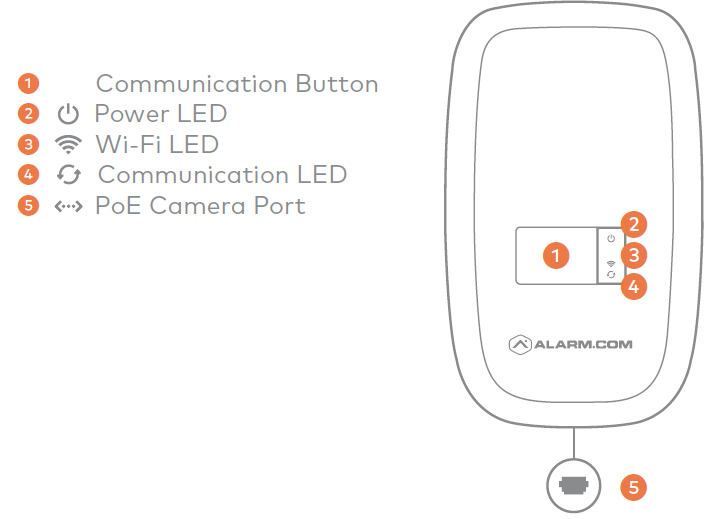
LED Guide
Power 
| LED status | Description |
|---|---|
 |
Powered on |
| Off | Powered down |
Status 

Note : The status of the ADC-W110 uses two LEDs instead of one. Both LED patterns are required to determine the status.
| ** LED status**|
 LED status|Description|
| — | — | — | — |
| ||Successfully connected to the wireless network|
|| |Local network connection only, connecting to internet|
|Off||WPS mode|
| |Off|AP mode|
| |Off|No network found|
||****|Restore factory default settings|