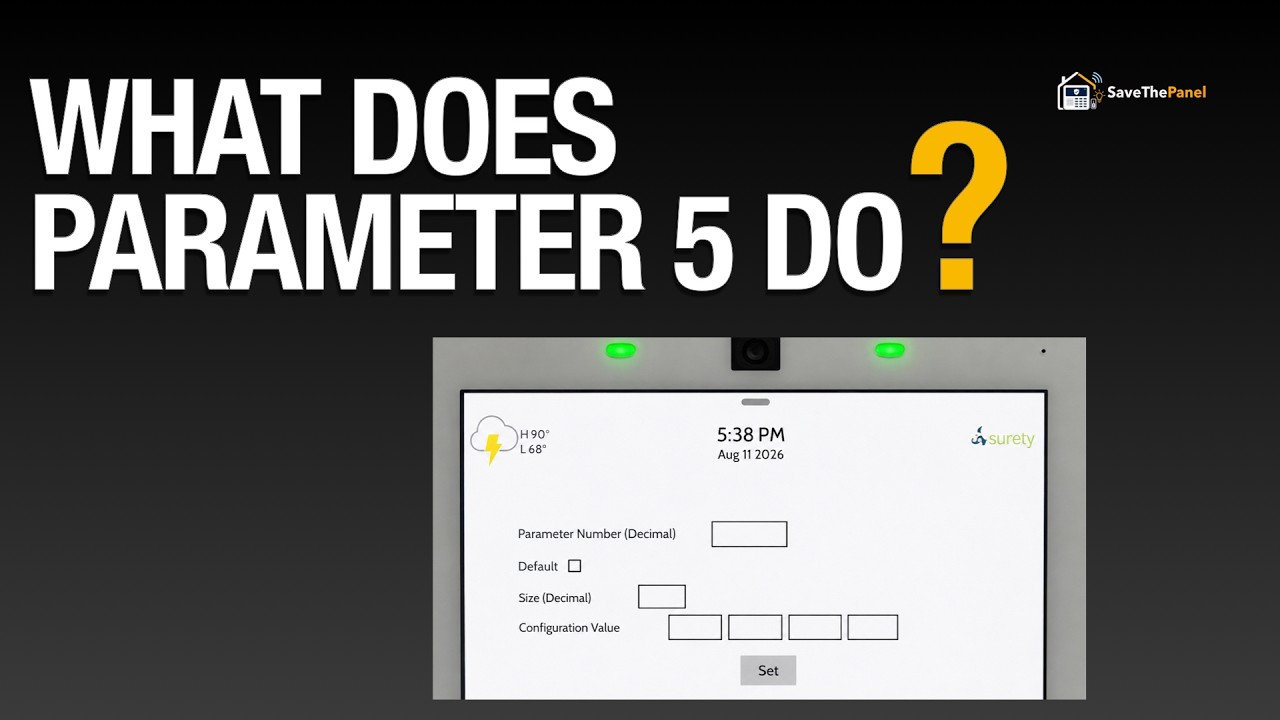
The IQ Panel 4 and IQ Panel 5 can set advanced Z-Wave device parameters directly from the panel. This lets you change how your Z-Wave devices behave, such as changing the color of the LED indicator on a wall switch, setting the minimum brightness level of a dimmer, setting the length of an auto-turnoff timer for a light, or setting the DC Motor Mode in a Zooz ZEN16 multirelay to interlock the relays so that only one relay is active at any given time (a useful safety feature when using multi-relays in certain applications).
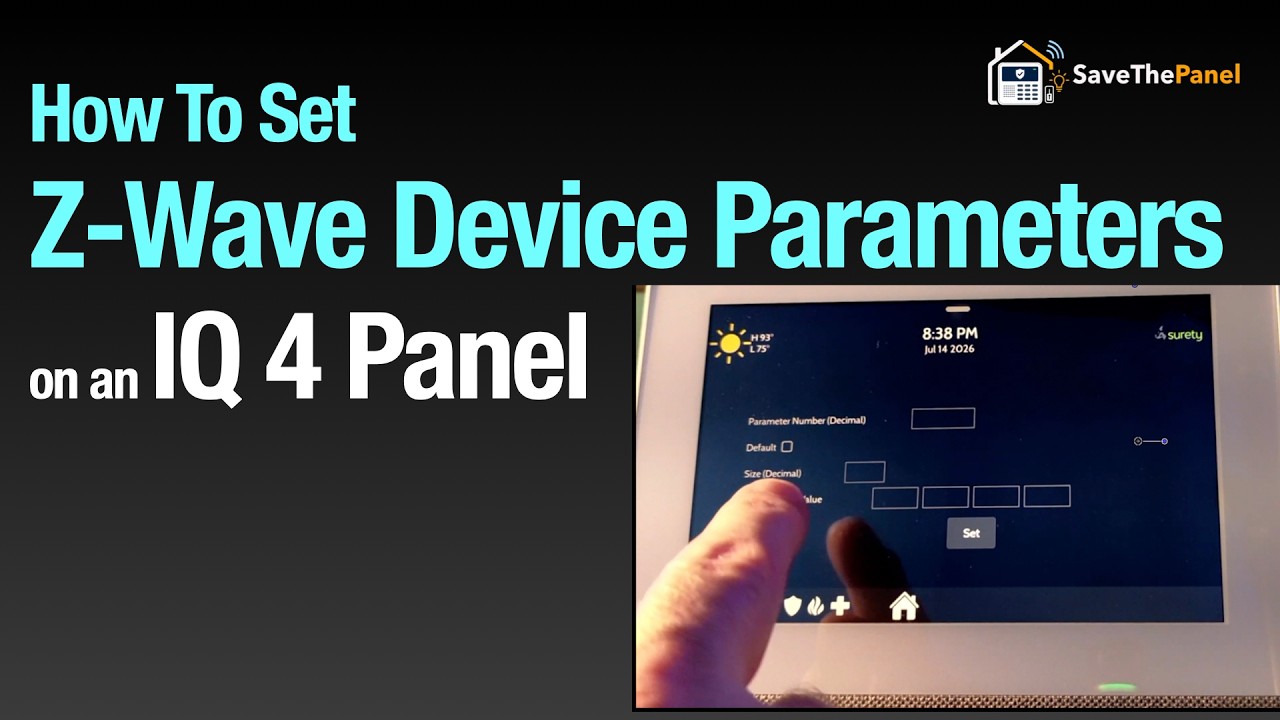
Before you dive in, watch this video. It walks through a few examples and explains the process in detail.
Proceed with caution. This is an advanced feature. Setting parameters incorrectly can change the behavior of your Z-Wave devices in unexpected ways. Only change parameters you understand, and always refer to your device’s manual.
Requirements
-
IQ Panel software version 4.5 or higher
-
The dealer code (default
2222), not the installer code. Setting Z-Wave parameters is only accessible with the dealer code.
How To Access The Feature
-
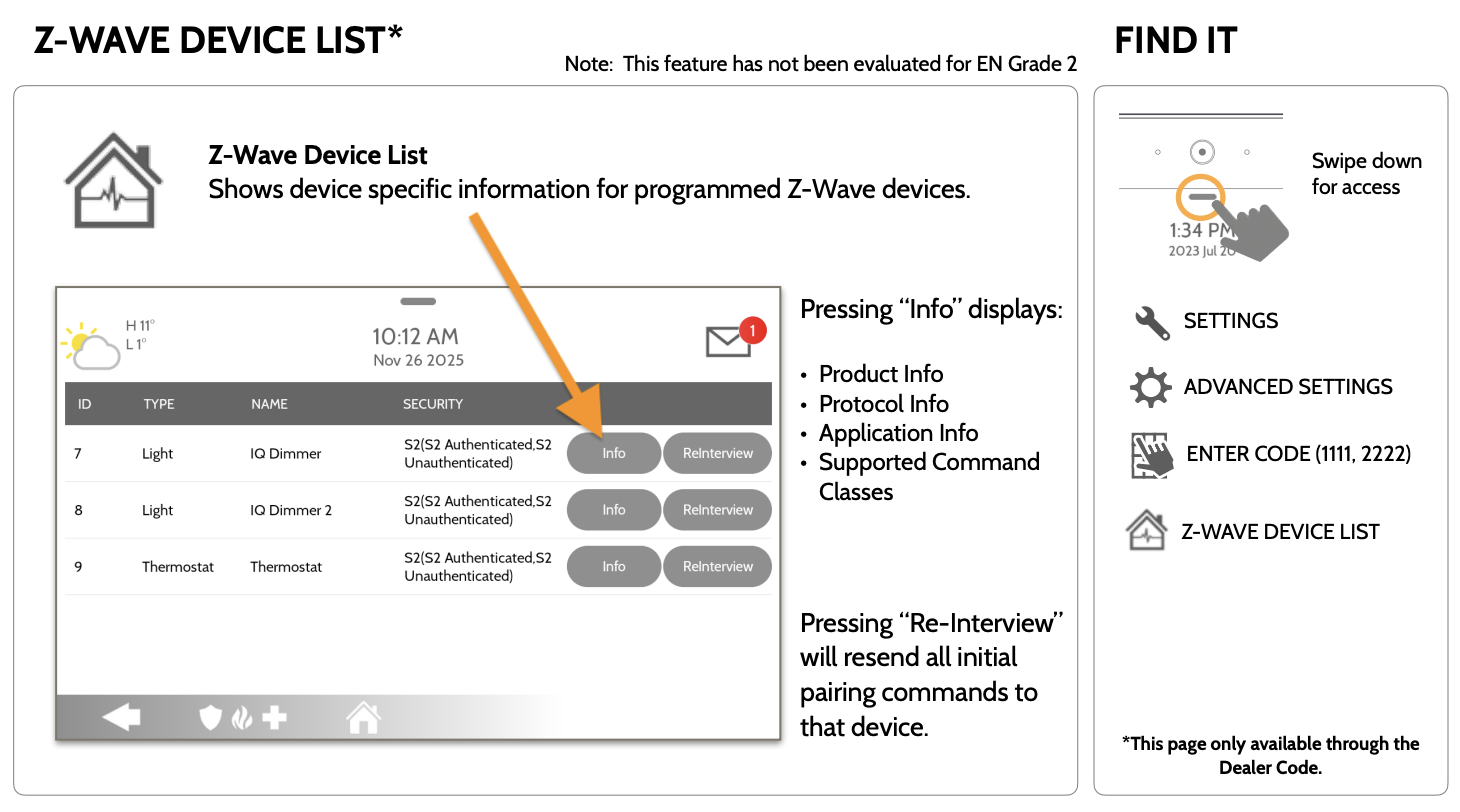
Go to Settings > Advanced Settings (enter your dealer code) > Z-Wave Device List.
-
Find the device in the list and touch Info.
-
Scroll down to COMMAND_CLASS_CONFIGURATION_V4 and touch the cog wheel button in that row.
If you don’t see the cog wheel, you may be on an earlier IQ Panel software version and need to upgrade first.
Entering The Parameter
Once you’re in the command class configuration screen, you’ll need to enter three things: the parameter number, size, and value.
Z-Wave parameters are device specific. You can find them in the manual for your particular device.
-
Parameter number is entered as a decimal number (base 10, the numbers we’re all familiar with).
-
Size is also entered as a decimal number.
-
Value is entered as a hexadecimal number (base 16 instead of base 10), which is typically only used by computer and math geeks.
The values given in your Z-Wave device manual may already be in hexadecimal. If they are given in decimal, you can use an online converter such as this to easily convert them.
Once you’ve entered everything, touch the Set button to send the new parameter value to the device.
Entering Multi-Byte Parameter Values
Some parameters use a size larger than 1 byte, which requires entering the value across multiple bytes. This can be tricky, so if you’re working with a 2-byte or 4-byte parameter, see this post for a detailed walkthrough.
Resetting To The Default Value
If you make a mistake and want to set a parameter back to the manufacturer’s default value, just enter the parameter number, check the Default box, and hit Set, instead of entering a size and value.
Credit & Thanks
Big thanks to @darren.stp at SaveThePanel for figuring out how to do this, teaching us, and making the helpful video above.