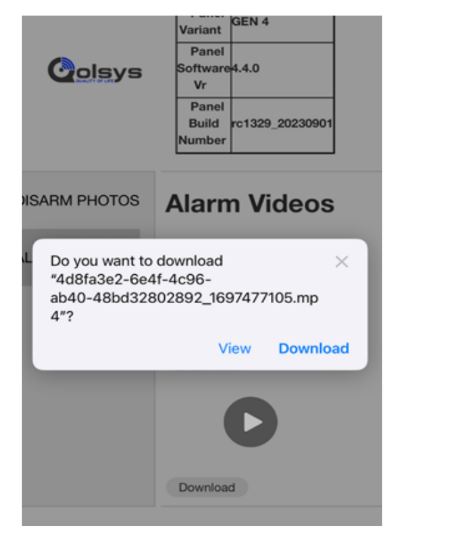
It is possible to obtain videos and images taken by the built in panel camera, even if the camera has not been associated with Alarm.com.
To do so, you will first need to enable AP Mode on the panel and set up a new password for the network. Once this is done you can connect your phone to the network and download the alarm video or images.
AP Mode
To enable AP Mode on the panel navigate to Settings > Advanced Settings > Enter the Dealer or Installer Code > Installation > Devices > Wi-Fi Devices > Access Point Settings.
From there enable Wi-Fi Access Point. You will be prompted to enter a new password.
Once that is done, navigate back to the home screen and swipe over to the camera page then tap on the box shown:
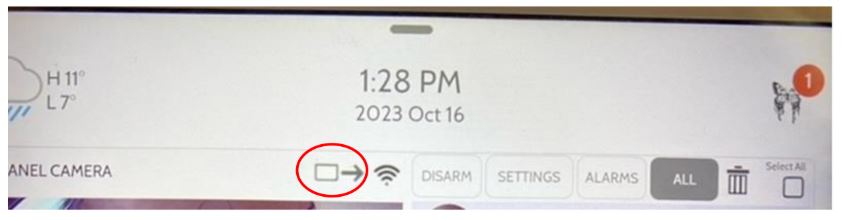
Click Start to start the server. Once AP Mode is enabled, two QR Codes will display. Scan the First QR Code and join with the phone. Then scan the second QR code.
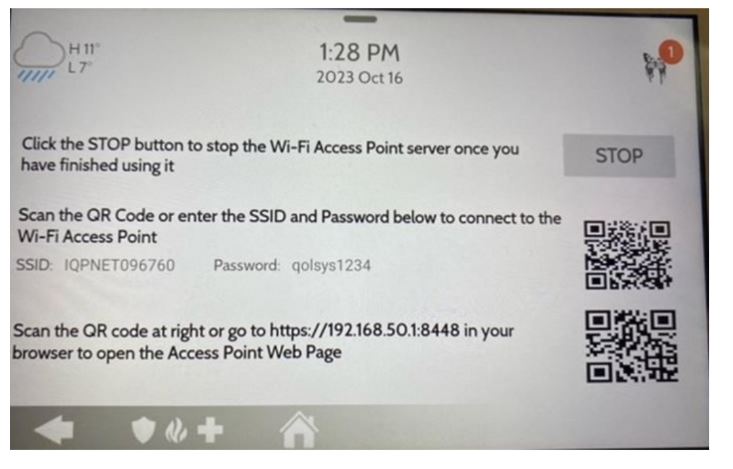
The second QR Code will redirect to a webpage. You might get a warning saying the page is unsafe but you will need to proceed.
- Depending on your phone, you may need to enable advanced settings from the warning page.
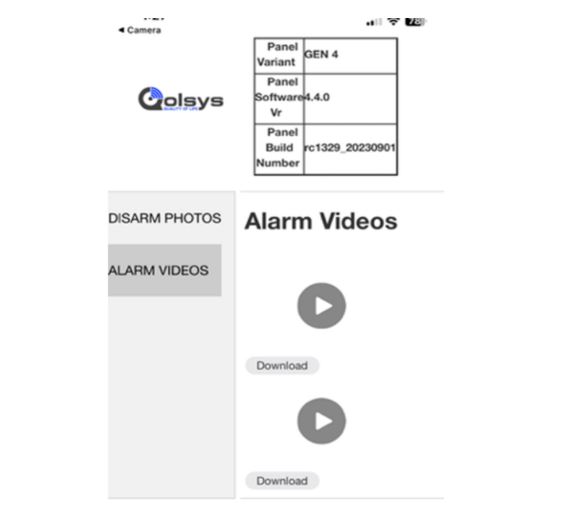
Select the video or image you need and download: