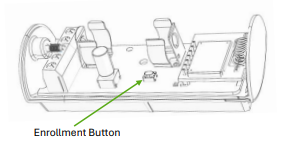
The PGP-IO9 is a module that lets you open and close a gate right from your IQ Panel 5 or the Alarm.com app on your phone. Here’s how to get it set up and how to use it day to day.
What is needed:
- An IQ Panel 5 with firmware 5.0.3+
- PGP-IO9
- Surety Home or Surety Complete Plan
Wiring Overview
Your PGP-IO9 can be wired two ways, depending on your gate operator:
- Normal output: uses a Normally Open connection
- Inverted output: uses a Normally Closed connection
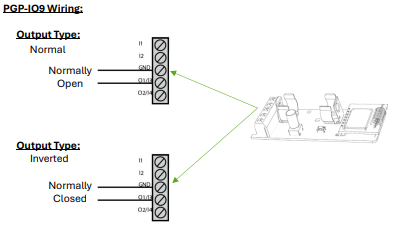
Your technician will typically handle this wiring during installation, but it helps to know which mode your gate uses if it ever needs to be changed later.
Enrolling the PGP-IO9 on Your Panel (IQ Panel 5, v5.0.3 and higher)
- Go to Settings > Advanced Settings > Installation > Devices > Security Sensors > Auto Learn Sensor
- Press and hold the enrollment button on the PGP-IO9 for 3 seconds
- Select “Add New” on the panel screen
Tip: The PGP-IO9 comes with two zone inputs and two programmable outputs by default. If you only need one zone input, the unused one can be removed or edited later under Security Sensors > Delete/Replace Sensor or Edit Sensor.
Programming the Gate Output
- Go to Settings > Advanced Settings > Installation > Devices > Security Sensors > PGM Output Rules
- Give the output a name (for example, “Front Gate”)
- Set the Output Type to Normal or Inverted, matching how it was wired
- Set the Action to Timer and choose how many seconds the output should stay active
- Set the Trigger Type to Command and select the matching Command Output (1-4)
- Save your changes
PM or Email Us
Once the panel programming is complete, you can PM or Email us at Support@suretyhome.com so we can switch it to a gate.
Activating the Gate from Your Panel
Swipe left on your IQ Panel 5 home screen to reach the command output page, then tap the gate tile to open it as needed.
Controlling the Gate from the Alarm.com App
Once your gate output is set up, you can also control it from the Alarm.com app:
- If the gate icon shows up as “unknown,” open the Command Output page and trigger the output once so the app can recognize it
- Tap the arrow on the gate tile to open the Command page
- Tap the gear icon to rename the device (for example, “Front Gate”) and tap Save
- Test it: tap the gate icon, then tap “Open,” and you should see the status change from opening, to open, to closed
A few helpful things to know:
- The output stays active for as long as the timer you set in the Programming the Gate Output section above
- The open/closed icon in the app reflects the output’s state change, not necessarily the gate’s true physical position
- If you’d like the app to show the gate’s actual position, ask your technician about adding a zone input to monitor the gate
- Always make sure your gate has proper safety sensors so it doesn’t close on a vehicle, person, or pet