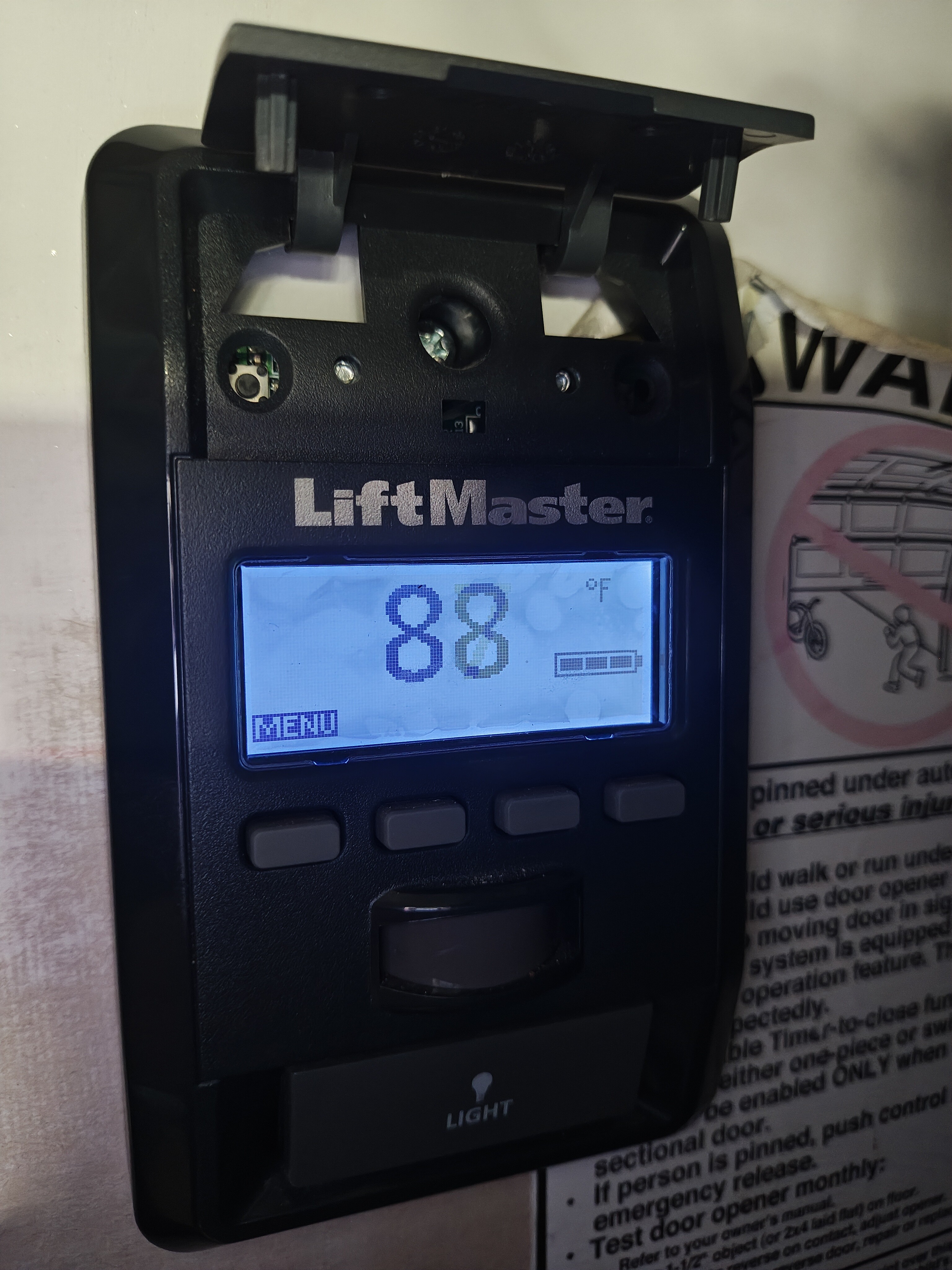
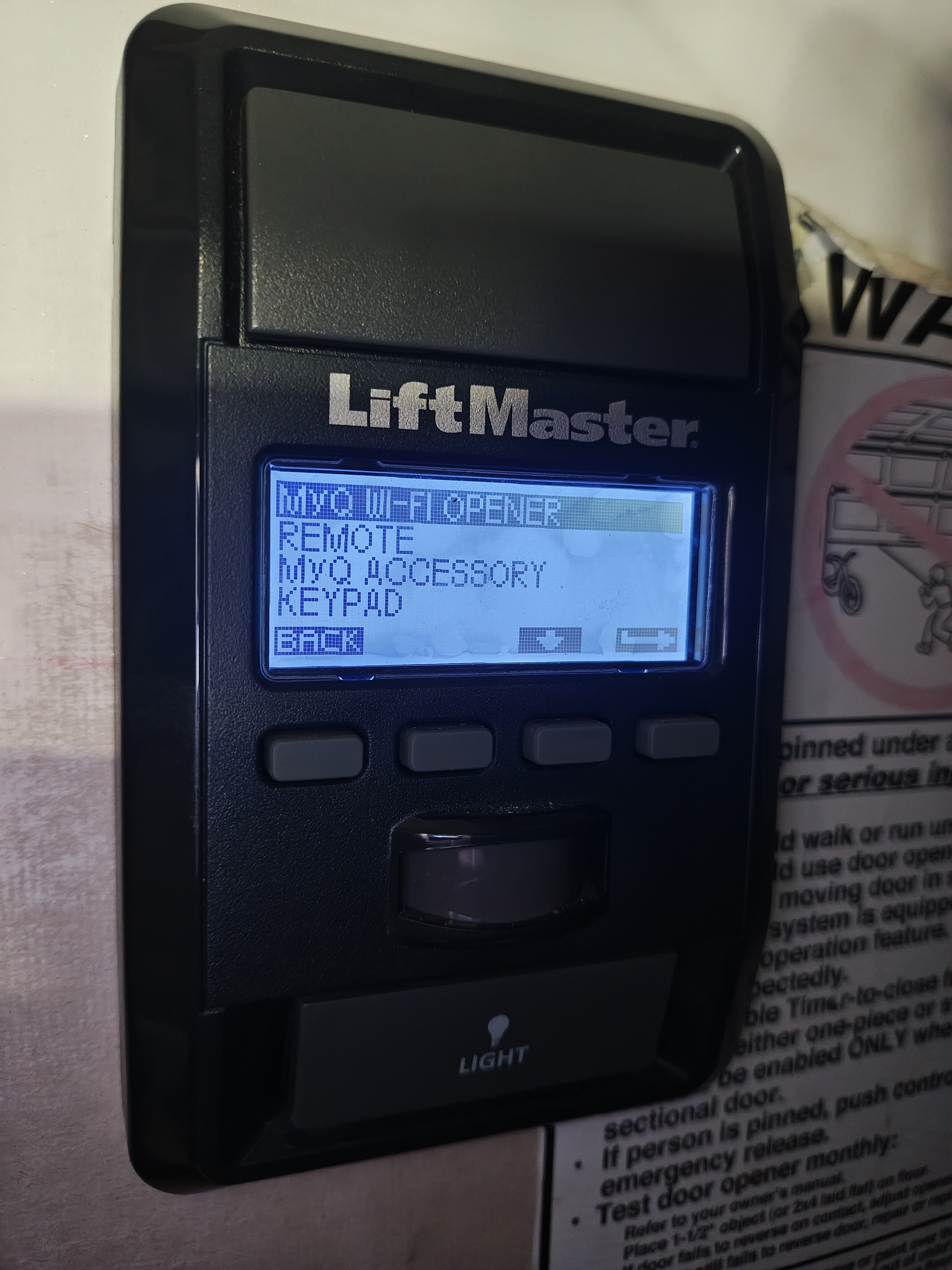
I am trying to add my Liftmaster 8500W garage opener to my alarm.com account, unsuccessfully. I previously had it working with a different provider (Brinks), so I know it should work.
Opener: Liftmaster 8500W
Hub: MyQ Internet Gateway 828LM
Panel: 2GIG-GC2E-345
I have the garage add-on added and activated with my Surety Home plan.
I have removed the hub and opener from the MyQ account. Then I registered the gateway hub serial with the alarm.com account, through the website. Then I clicked to “add device” and confirmed the gateway to add the device to (only 1 shows up). I select the garage opener, as the wall panel I have does not have a myQ icon on it. My gateway hub has an orange/yellow light that then turns on (in addition to the already solid green light indicating it has wifi). Then I press the learn button on the opener for 2 seconds. The LED briefly illuminates and the device beeps, and I immediately click the “Check for new devices” button on the website. Unfortunately it just spins and is unable to detect my device.
I have also tried going to the “program” option in the wall control panel and triggering the different learn modes that way, but with no success. Again, this was working through alarm.com previously with a separate provider.
I’ve reverted to connecting through the MyQ app temporarily.
Lets try factory defaulting the gateway and then learning it back in.
To default:
Disconnect power from the MyQ Internet Gateway.
Locate the reset button pinhole on the side of the gateway.
While the gateway is powered down, use a thin tool (such as a paper clip) to hold the Reset button. A click should be felt.
Continue holding the Reset button while reapplying power to the gateway.
Continue holding the Reset button for another 10-20 seconds until the gateway’s yellow LED blinks, then immediately release the button.
To learn in the gateway
Log in to the Customer website.
Click Settings.
Click ManageDevices.
Click Add Device.
Click Garage Door.
Click MyQ Control Panel.
Click Next.
Click Register Gateway.
In the Serial Number field, enter the serial number of the Internet Gateway, and then click Continue.
The Internet Gateway will go into learn mode so that MyQ-Enabled Garage Door can be added. A yellow light turns on at the Internet Gateway to indicate that it is in learn mode.
After the yellow light is on at the Internet Gateway, go to the MyQ Control Panel and push the learn button twice.
On the MyQ Control Panel, the red LED turns on.
On the MyQ Internet Gateway, the LED turns blue once the device is learned in.
13. Return to the Garage page and click Check for New Devices.
14. Repeat steps 6-9 if initially unsuccessful. Also, verify the model number of the garage door opener to verify it is compatible. For a full list of compatible garage door openers, see Complete list of compatible garage doors.
Thanks for the reply. I’ve tried those steps before, but I’ll try them again. One issue is that I have a different control panel for the opener, the 880LM model.
Adding the opener and pressing the learn button on it for 2 seconds, or pressing it twice, or pressing it 3 times. All no luck.
Adding the wall panel and using both the myq options on it to initiate learn mode. No luck.
I should note that when I tried the “myq accessory" option on the panel, it prompted me to press the learn button, which I assumed was on the opener. When I did that and then clicked add device from the alarm.com website, my opener did beep and the light flashed, and the learn button light turned off. But then the website just spins and doesn’t confirm anything was added.
Sorry for the delay. I’m trying to get some info on making these work together. Can you confirm the model of the garage door opener motor? Does the garage door opener motor have a MyQ serial number?