Before You Begin
Ensure your IQ Pro panel is running firmware version v4.2.1n or higher before attempting to pair the IQ Remote PG. All IQ Pro programming is done through the IQ Installer app on your phone or tablet — the IQ Pro does not have a touchscreen.
Option 1: Learning In via Wi-Fi
On the IQ Remote PG:
-
Power on the IQ Remote PG by pressing and holding the power button for about 5 seconds until it boots up.
-
Once booted, connect to the same Wi-Fi the IQ Pro panel is connected to.
-
Place your IQ Pro into pairing mode
- Open the IQ Installer app and connect to the IQ Pro panel.
- Tap Configuration > Installation > Devices > Wi-Fi > IQ Remote Devices.
- Tap Add New Remote.
- The IQ Pro will search for the IQ Remote PG on the network.
-
When the panel is in enrollment mode for the keypad, tap Wi-Fi Pair on the IQ Remote PG.
-
The IQ Remote PG will connect to the IQ Pro and check for any remaining software updates, then automatically navigate to the home screen once complete.
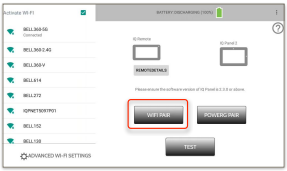
Option 2: Learning In via PowerG
Note: If you plan to pair via PowerG, updates need to be performed manually.
On the IQ Remote PG:
-
Power on the IQ Remote PG by pressing and holding the power button for about 5 seconds until it boots up.
-
Place the panel into remote PowerG enrollment mode
- Open the IQ Installer app and connect to the IQ Pro panel.
- Tap Configuration > Installation > Devices > Security Sensors.
- Tap Add and select Auto Enroll. The IQ Pro will now listen for a new PowerG device.
-
On the IQ Remote PG screen, tap PowerG Pair.
-
The IQ Remote PG will be recognized by the IQ Pro.
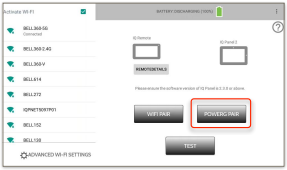
Back in the IQ Installer App:
- Configure the IQ Remote PG options as desired and tap Save.
- The IQ Remote PG will move to the home screen once pairing is complete.
Note: When paired via PowerG, the IQ Remote PG can still be connected to a Wi-Fi network — this does not affect the PowerG pairing. Wi-Fi on a PowerG-paired remote is used for firmware updates only.
Make sure the IQ Remote is up to date
Swipe down the settings bar on the IQ Remote PG > Settings > Code > tap IQ Remote PG Upgrade. The remote must be within approximately 30 feet of the IQ Pro panel. Sometimes it may fail and could take several tries.